
Many shops open an Official Account and then watch the chat list pile up: the same customer asks a third time before anyone sees it, teammates don't know who already replied, and a size or address you finally collected has to be asked for again next time. This guide covers turning chat on, switching modes and keeping it tidy.
What LINE Official Account chat is: three response modes
Chat (聊天) is your one-on-one conversation window with each friend of the account. Who answers an incoming message depends on the response mode you pick in Response settings:
| Response mode | Who replies | Best for |
|---|---|---|
| Manual chat (手動 | You or a teammate, in the chat window | Business hours, questions that need details checked |
| Auto-reply messages (自動 | Keyword-based replies you set up | Fixed answers such as hours, address and prices |
| AI chatbot (AI 聊天 | LINE's AI, answering common questions from the information you give it | Covering common questions after hours; needs the Chat Advanced Plan |
LINE's own FAQ says manual chat is the mode most businesses choose: reply yourself during business hours and let keyword auto-replies catch messages outside them.
How to turn on chat: switch on Chat in Response settings
The path is the same in the web manager and the mobile app:
- Open the account and go to Settings (設定).
- Open Response settings (回應
設定). - Under the response features, switch on Chat (聊天).
- Go back to the Chat tab at the top to see every customer conversation.
Tip: auto-reply messages and the greeting message for new friends can each be set to Disabled (停用) on their own. If you want people to answer every message, disable auto-reply messages and keep the greeting, so new friends see your hours as soon as they add you~
How to switch between auto-reply and manual chat: set response hours
The easiest setup is not switching by hand every day. Set your response hours and non-response hours once. LINE's help center explains that under Settings → Response settings you can choose a separate response mode for response hours and for non-response hours.
Answer these three questions when you set it up:
| Question | Suggested answer |
|---|---|
| What are your response hours? | Match your shop hours, for example Monday to Friday 10:00–19:00 |
| What do customers ask most after hours? | Hours, address, prices and how to book: turn them into keyword auto-replies |
| Who picks up after-hours questions? | First thing next morning, open To-do and reply in order |
For keyword auto-reply wording and examples, see LINE auto-reply setup examples. When you also use the AI chatbot (beta), keyword-matched auto-replies answer first and the AI covers the other wordings.
How to sort the chat list: Unread, To-do, Done
Once chats pile up, the biggest risk is missing someone. The chat list has an All (全部) dropdown to filter by status. The ones you will use most:
| Status | Meaning | When to use it |
|---|---|---|
| Unread (未讀) | Messages not yet opened | Check this first when you start work |
| To-do (待處理) | Seen, but still waiting on a check or an answer | Checking stock, waiting for the manager |
| Done (處理 | This request has been answered | Mark it right after you reply |
Inside a customer's one-on-one chat window you can mark the conversation To-do or Done with one tap. Make it a habit: mark Done when you finish, mark To-do when you still need to check something. The next day you only need to look at To-do, and no customer gets forgotten.
Ads or harassment can be marked as spam. They move to the Spam (垃圾
Tags and notes: keep customer details inside the chat
Tags group customers; notes record the details of one customer. Use them together, and the next time a customer writes in, any teammate who opens the chat knows the story so far.
Create a tag: tap the gear icon Chat settings (聊天
Write a note: add a note in the customer's chat window, for example "Bought size M last time, prefers weekend pickup."
Name tags by where the customer is in the journey, not by mood:
| Tag | Use |
|---|---|
| Asking price | Asked about price but has not ordered, so you can follow up |
| Ordered | Has an order in progress; check it when they ask for status |
| After-sales | Return, exchange or repair in progress |
| VIP | Regular who has bought several times |
Tags also let you send segmented messages to specific customers only. See LINE broadcast segmentation with tags.
Saved replies: store common answers and send them in one tap
If you type the same sentence ten times a day, save it as a saved reply (預設
Start with these five:
| Saved reply | Example |
|---|---|
| Hours and address | "We're open [Monday to Friday 10:00–19:00], and you'll find us at [address]~" |
| Price and link | "[Product] is [price], and here's the order link: [link]" |
| Order check | "Could you send me your order number? I'll check the shipping status right away~" |
| Checking for you | "Got it, let me check and get back to you within about [time]~" |
| Passing to the manager | "I'll ask our manager to reply to you directly, one moment please~" |
For more lines you can copy, see 36 customer service reply templates. To turn them into a full process, read the customer service SOP template.
Free version vs the Chat Advanced Plan
Basic chat is free. The Chat Advanced Plan (聊天
| Item | Free | Chat Advanced Plan |
|---|---|---|
| Chat history kept | 6 months | 5 years |
| Tags you can create | 5 | 300 |
| Tags per chat | 1 | 30 |
| Notes per chat | 1 | 1,000 |
| Custom filters | None | Up to 20 per user, can filter by tag |
| Chat history backup (CSV) | None | One new file per week |
| AI chatbot (beta) | None | Included |
The rule of thumb: if 5 tags are not enough, you need conversations older than six months, or you want to export chats for a monthly review, it is worth turning on. The backup path is Chat → Chat settings → Basic (基本) → Back up chat history (備份
Replying on your phone: the Chat tab in the app
When you are out, reply from the LINE Official Account app: tap Chat at the bottom, and use the All ▼ dropdown at the top to filter. To change notifications, go to Chat settings → Basic → Notification settings (提醒
Three things you will do most on your phone:
- Tap + to insert a saved reply instead of typing long sentences on a small keyboard.
- Mark Done right after you reply, so you don't answer twice when you get back to your computer.
- Write new customer details straight into the note so teammates see them at once.
You can send and receive images and files in chat. LINE's help center notes that received files are not scanned for malware, so don't open files from unknown senders.
Summary: how to use LINE Official Account chat

A quick note from FRIDAI
Once your LINE chats are organized, no customer has to ask three times to be seen, and you no longer have to remember everyone's details in your head~
Follow these steps and you can set it up today:
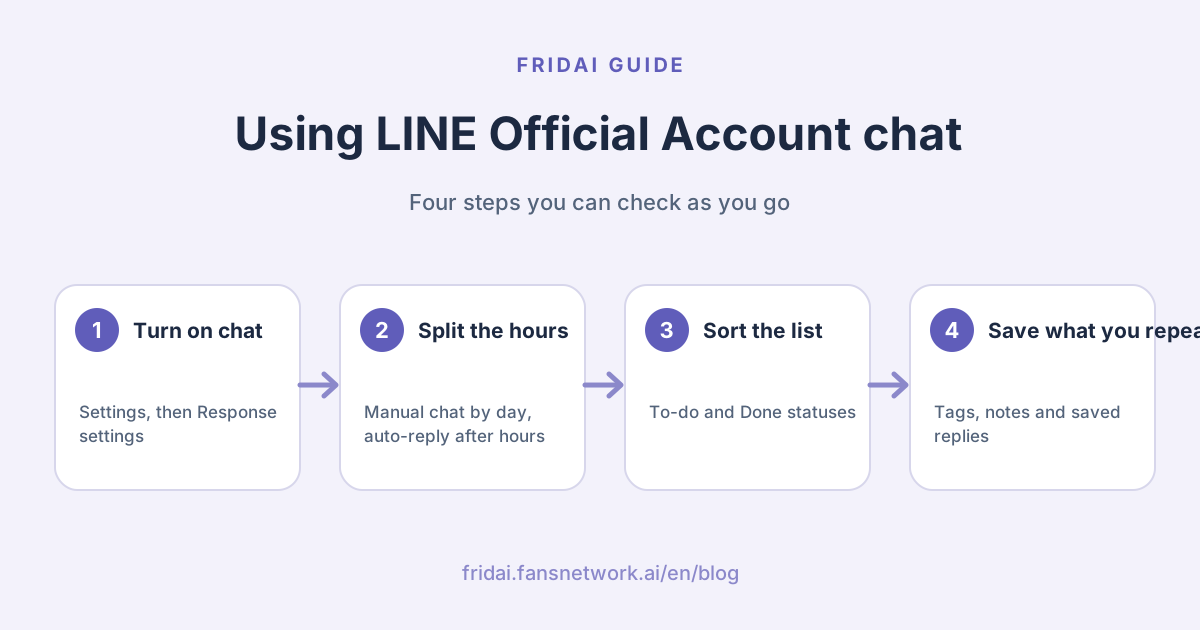
- Turn on chat in Settings → Response settings; reply by hand during response hours and let auto-reply cover the rest.
- Mark Done when you finish and To-do when you still need to check; start each day with those two.
- Name tags by where the customer is in the journey, and put details in notes.
- Save the sentences you type every day as saved replies, and send them in one tap on your phone too.
- Turn on the Chat Advanced Plan when 5 tags run out or you need to export history.
If you want AI to cover after-hours questions, send me your saved replies and we'll turn them into a knowledge base together☺️
FAQ
Where do I turn on LINE Official Account chat?
Go to Settings → Response settings and switch on Chat under the response features, then open the Chat tab at the top to reply to customers one on one. You can set it in both the web manager and the mobile app.
Can I use chat and auto-reply at the same time?
Yes. In Response settings, choose one response mode for response hours and another for non-response hours, for example manual chat during business hours and keyword auto-replies or the AI chatbot (beta) after hours.
How many tags can a LINE Official Account have?
The free version lets you create up to 5 tags with 1 per chat. The Chat Advanced Plan allows up to 300 tags and up to 30 per chat.
How many notes can I write per chat?
The free version allows 1 note per chat, and the Chat Advanced Plan allows up to 1,000 notes per chat.
How many saved replies can I store?
An account can keep up to 200 saved replies, each up to 1,000 characters. Add them under Chat settings → Saved replies and tap + in the chat window to insert one.
How much is the Chat Advanced Plan?
The Chat Advanced Plan is NT$100 a month, tax not included and not prorated. It includes 5 years of chat history, 300 tags, 1,000 notes per chat, custom filters, CSV chat backup and the AI chatbot (beta).
Can I download LINE Official Account chat history?
Yes, with the Chat Advanced Plan. Go to Chat → Chat settings → Basic → Back up chat history, create a CSV file and download it. You can create a new file once a week and download a created file again.
Can a LINE Official Account join a group chat?
Yes. A group member has to invite the account, the account must be set to accept group and multi-person chat invitations, and the response mode must be manual chat.
How FRIDAI can help
With your chats organized, the next step is giving customers the right answer at any hour. FRIDAI Chat connects to your LINE Official Account and replies in your voice from the products, prices and processes in your knowledge base. When a case should go to a person, it notifies you, and the AI pauses once a person takes over. The same plan also covers DMs on 8 platforms, including Instagram and Facebook Messenger.
- DM customer service: FRIDAI Chat
- Auto-reply examples: LINE auto-reply setup examples
- Process: Customer service SOP template
- Instagram: FRIDAI Instagram
- Threads: FRIDAI Threads
- Facebook: FRIDAI Facebook
Official sources
- LINE Official Account help center: Chat (Traditional Chinese): help2.line.me/
official_account_tw/ web/ categoryId/ 20006393/ 3/ pc?lang=zh-Hant - LINE Official Account help center: AI chatbot (beta) (Traditional Chinese): help2.line.me/
official_account_tw/ web/ categoryId/ 200000670/ 3/ pc?lang=zh-Hant - LINE Biz-Solutions: one-on-one chat tips (Traditional Chinese): tw.linebiz.com/
column/ 1on1-chat/ - LINE Biz-Solutions: LINE Official Account one-on-one chat (Traditional Chinese): tw.linebiz.com/
column/ 1to1/ - LINE Biz-Solutions: auto-reply messages (Traditional Chinese): tw.linebiz.com/
manual/ line-official-account/ oa-manager-autoreply/ - LINE Biz-Solutions: response mode FAQ (Traditional Chinese): tw.linebiz.com/
faq/ oa-chat/ 20200715/ - LINE Biz-Solutions: Chat Advanced Plan (Traditional Chinese): tw.linebiz.com/
faq/ chat-advanced-plan/ - FRIDAI Chat: fridai.fansnetwork.ai/
en/ fridai-chat