
Jumping between the Instagram app, your Facebook Page and WhatsApp all day makes it easy to miss a message or two. In this guide we walk through the inbox from start to finish: which permissions to turn on first, how to reply to messages and comments, how a team splits the work, which of the 7 automation templates to use, and where to look when messages go missing.
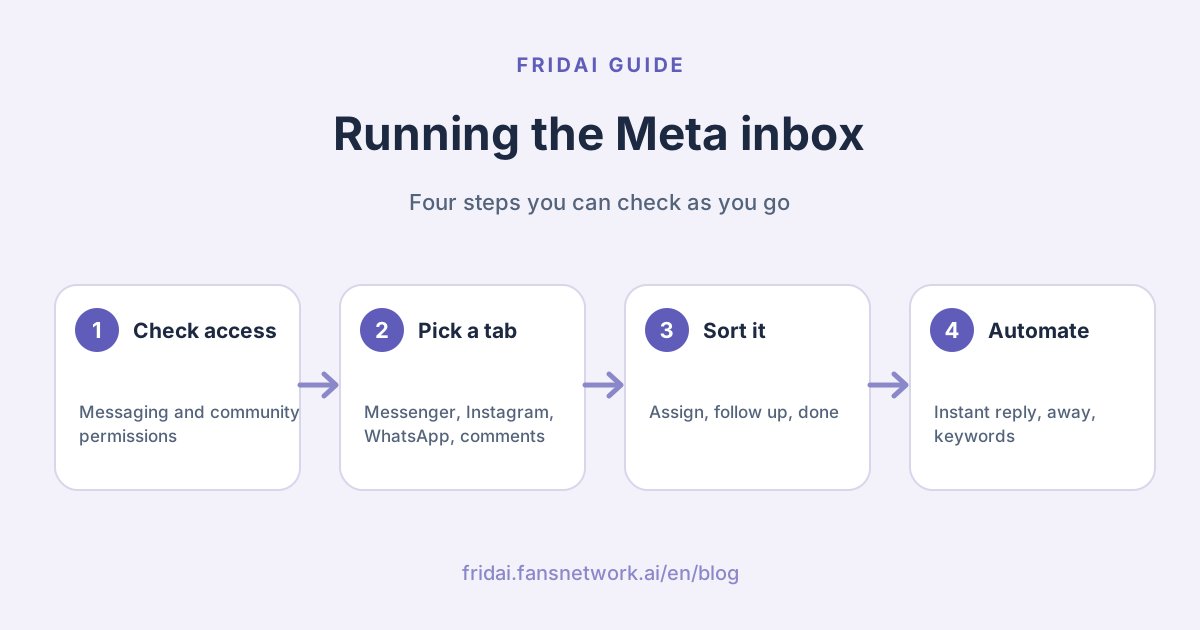
What is the Meta Business Suite Inbox?
Meta's help pages describe the Inbox as one place to manage your business's conversations across Messenger, Instagram and WhatsApp, along with comments on your Facebook and Instagram posts, so it's easier to talk to interested people whether you're online or offline.
When you open the Inbox, you'll see these tabs at the top:
| Tab | What's in it | Use it to |
|---|---|---|
| All messages | Messages from every platform together | Scan today's new messages in one pass |
| Messenger | Messages sent to your Facebook Page | Focus on Page conversations |
| Messages to your Instagram professional account | Focus on Instagram conversations | |
| Messages from a connected WhatsApp Business account | For businesses using WhatsApp | |
| Facebook comments | Comments on your Page posts and on posts your Page made in linked Groups | Reply to, hide or delete comments |
| Instagram comments | Comments on your Instagram posts | Reply to comments and message commenters |
The Inbox also lets you:
- Organize conversations: mark them unread or Follow up, or move them to Spam or Done.
- Filter: by unread, follow up and who they're assigned to, or use Ad response to see messages people sent in reply to an ad.
- Search: find people, labels or message content across Facebook, Messenger and Instagram.
- See customer details: open a conversation to see the person's name, photo and location, then add labels, email, phone number and notes. Notes are private to you and the people who manage your Page.
- Work your leads: switch to the Leads tab to track, filter and sort leads inside the Inbox.
Tip from us: the Inbox only shows comments from connected business assets. Comments on your personal profile, or on Instagram or Facebook accounts that aren't connected, won't appear~
3 things to set up first
If you open Business Suite and can't find the Inbox, or can't see Instagram messages, it's almost always permissions. Check this table once:
| What you want to do | Permission or setting you need |
|---|---|
| Reply to messages | Messaging permissions for the Page, Instagram account or WhatsApp account |
| Reply to, hide or delete comments | Community activity permissions for the Page or Instagram account |
| Reply to Instagram messages in the Inbox | Allow access to Instagram messages in Meta Business Suite |
| Reply to WhatsApp messages in the Inbox | Set up your WhatsApp Business account in the Inbox first |
| Assign conversations to teammates | Facebook access to the Page, or task access to Messages |
About Instagram message access: when you connect an Instagram account to Meta Business Suite, you're asked whether to allow access to Instagram messages, and it's set to allow by default. If you allow it, you'll be asked to sign in to Instagram again for security. Anyone with admin access to the Instagram account can change this setting at any time.
Meta puts it plainly: if you can't see Inbox in the left menu, you may not have the relevant permissions. Ask an admin of the Page or business portfolio to give you messaging permissions; it's faster than hunting around.
Reply to Instagram and Facebook DMs step by step
Here's how it works on desktop:
Step 1: Open the Inbox
Go to Meta Business Suite and click Inbox in the left menu. Make sure the dropdown at the top left shows the right Page or Instagram account; if your Page and Instagram account are connected, they appear together.
Step 2: Pick a platform and a conversation
Use the Messenger, Instagram and WhatsApp tabs at the top to switch platforms, or stay on All messages to see everything. Click the conversation you want to answer in the list on the left.
Step 3: Reply or react
Type in the box at the bottom and press Enter. To reply to one specific message, hover over it, click Reply, then type. To react, hover over the message, click React and pick an emoji.
Step 4: Tidy up after replying
Move finished conversations to Done and mark the ones that still need work as Follow up. This is the step people skip most, and it decides whether tomorrow's Inbox shows only what really needs you.
Manage Facebook and Instagram comments in the Inbox
Comments live in the same Inbox, but the flow is "pick a post first, then see its comments".
- Click Inbox in the left menu and check that the right Page or Instagram account is selected at the top left.
- Click the Facebook comments or Instagram comments tab at the top.
- Your posts are listed on the left; click one to see its comments.
- Use the filters to find posts that need attention.
Comment filters:
| Filter | Meaning | ||
|---|---|---|---|
| Unread | Posts not yet checked for comments in the Inbox | Yes | Yes |
| Follow up | Posts marked as ones to respond to | Yes | Yes |
| Page comments | Comments on organic posts published to your Page's feed | Yes | — |
| Group comments | Comments on posts your Page made in linked Groups | Yes | — |
| Done | Posts marked as needing no further action | Yes | Yes |
| Spam | Comments identified as spam | Yes | Yes |
What you can do with each comment:
| Action | Facebook comment | Instagram comment |
|---|---|---|
| Like or react | Hover over Like and pick a reaction | Click Like |
| Reply | Click Reply, type, press Enter | Click Reply, type, click Send |
| Message the commenter | Click Send message | Click Send message (comments from the last 7 days only) |
| Delete | Options → Delete | Options → Delete |
| Hide | Options → Hide comment | — |
| Report | Options → Report comment | — |
You can also hover over a post on the left and click Move to done or Follow up to sort the whole post at once.
Tip: if you can't reply to someone's Facebook comment, Meta's help page says they may have blocked your Page, so there's no need to keep retrying~
Split the work with assignments, labels and notes
With two or more people answering messages, the classic problems are a customer getting two replies, or everyone assuming someone else will answer. Assigning conversations in the Inbox solves exactly that.
How to assign a conversation (desktop):
- In Meta Business Suite, pick the right Page or Instagram account from the dropdown at the top left.
- Click Inbox in the left menu and choose Messenger, Instagram, WhatsApp, Facebook comments or Instagram comments, or All messages.
- Open a message from the list on the left.
- At the top of the message window, below the sender's name, click the Assign this conversation dropdown and pick the person.
- To remove an assignment, open the same dropdown and click Remove.
To see what everyone is handling, use the filter at the top of the message window and choose Assigned. You'll get a list of people and the messages assigned to each.
How we suggest splitting it:
| Conversation type | Who handles it | How to mark it |
|---|---|---|
| Prices, shipping, opening hours | Automations first, then whoever is on shift adds detail | Move to Done after replying |
| Orders, returns, exchanges | The person who handles fulfilment | Assign + label "Order" |
| Complaints, negative reviews | Store manager or owner | Assign + Follow up |
| Partnerships, press requests | Whoever handles marketing | Assign + a note with what they need |
Labels and notes pay off too: tag returning customers "Repeat buyer" and note their size or food allergies, so whoever picks up the next conversation already has the backstory.
Inbox automations: choosing among 7 templates
Inbox automations respond automatically when someone messages your business or comments on a post. They're available for Facebook Pages, Instagram business accounts and WhatsApp Business accounts connected to Meta Business Suite. Depending on the channels you've connected, some templates may not appear.
| Group | Template | When it sends | Desktop / mobile |
|---|---|---|---|
| Greet people | Instant reply | Someone messages you for the first time | Both |
| Greet people | Away message | A message arrives during your away hours | Both |
| Share information | Frequently asked questions | Suggests questions people can tap and replies with the answer | Both |
| Share information | Location, Contact information, Hours | Someone asks for your address, contact details or hours | Both |
| Share information | Custom keywords | A message contains a keyword you set | Desktop only |
| Share information | Comment to message | A comment contains a hashtag you set | Desktop only |
| Organize messages | Identify unanswered messages | Flags messages that haven't been answered | Both |
Custom keyword rules, as Meta's help page lists them:
- Each automation can use up to 5 keywords or phrases, for example a reply about your current promotion whenever a message contains "sale".
- Keywords are case-sensitive and must match exactly.
- Each keyword or phrase can be used in only one custom keyword automation.
- Replies can include photos, videos, buttons and links.
- The keyword reply sends after 15 minutes unless you reply personally before then.
- When a template automation and a custom keyword automation are both on and both triggered, the template reply is sent. For example, if your away message is on and the message also contains a keyword, the customer gets the away message.
Tip from us: automations shine for questions with fixed answers, like your address, opening hours or bank transfer details. For English keywords, think through the common capitalisations and spread them across your automations~
Meta also notes that if you turn on Meta Business Agent, existing automations such as away messages and instant replies are paused; the Inbox labels the conversations it is handling with AI Responding, and you can still reply manually.
Missing messages or an away message you can't turn off
Meta's Inbox troubleshooting page covers the most common cases. Here they are, sorted by what you see:
| What you see | Why | What to do |
|---|---|---|
| No WhatsApp tab | Your country or region may not support connecting WhatsApp Business to the Inbox | Check Meta's list of available regions; availability may change |
| No switch for the away message | It has no switch and follows the schedule you set | To turn it off completely, set yourself as available 7 days a week, 12:00 a.m. to 11:59 p.m. |
| Automated messages you can't trace | They may come from Inbox automations, ad templates, the welcome message or a third-party app | Use the next table to find the source |
| No FAQ or custom keyword template | Access may be restricted by regional privacy rules | See Meta's page on messaging features in Europe and Japan |
| Messages missing from All messages | With a third-party messaging provider, messages may be moved to other folders | Filter to check Done and other folders; set up conversation routing if needed |
| Some Instagram messages missing | The Inbox only shows your Instagram main folder; Hidden requests don't sync | Move them to the main folder in Instagram Messages |
| Ad comments show text like {{product.name}} | Ads using Advantage+ creative generate a template post with placeholders | Customers see the real product info; preview the ad in Ads Manager |
| Partnership ad or collaborative post comments missing | Only the content's creator can manage its comments in their Inbox | Manage partnership ad comments in Ads Manager |
Where automated messages come from:
| Source | How to recognise it | Where to change it |
|---|---|---|
| Inbox automations | The message ends with "Sent by automated response" | The automation's settings in the Inbox |
| Ads | It carries an ad ID label or matches a click-to-message ad template | The message template in Ads Manager |
| Welcome message | Appears after someone first messages you on Messenger and taps Get Started | Not an Inbox automation; manage it in the welcome message settings |
| Third-party app | You've ruled out the other three | Page Settings → Page setup → Advanced messaging → Connected apps |
A 10-minute daily Inbox routine
Once you know the tools, what makes customers feel "they reply fast" is a steady rhythm. We suggest running this twice a day, at opening and before closing:
- Start with Unread: scan all unread messages and comments, and answer the one-liners straight away.
- Clear Follow up: anything you flagged yesterday gets an outcome today.
- Assign: send orders, complaints and partnership requests to the right person, by name in the assignment rather than by word of mouth.
- Empty it: move finished threads to Done and junk to Spam; the shorter the list, the easier it is to run.
- Add automations: if the same question came up three or more times today, turn it into an FAQ or keyword reply.
The Inbox gathers your messages; the quality of the answers still comes from what you write. When customers ask beyond fixed questions, like "is this suitable for sensitive skin?" or "any table left on Saturday afternoon?", you need AI customer service that understands the question and checks your information before replying. See how to choose an AI customer service system, or go back to the complete Meta Business Suite guide for the bigger picture.
Summary: the smoothest way to run the Meta Business Suite Inbox

A quick note from FRIDAI
Getting every message and comment into one place is the first step to solid customer service~
- Check messaging and community activity permissions, and allow access to Instagram messages, so the Inbox can show Instagram conversations.
- Start each day from Unread and Follow up, and move finished threads to Done so the list holds only real work.
- With two or more people, split the work with assignments, labels and notes instead of word of mouth.
- Hand fixed questions to instant replies, away messages and keywords; keywords must match exactly and send only if you haven't replied within 15 minutes.
- If messages go missing, check Instagram Hidden requests and the Done folder first
Run this rhythm for a week and you'll notice far fewer missed messages☺️
FAQ
What messages can I reply to in the Meta Business Suite Inbox?
Messenger, Instagram and WhatsApp messages, plus comments on your Facebook Page and Instagram posts. It only shows business assets connected to Meta Business Suite; comments on your personal profile don't appear.
Why can't I see some Instagram messages in the Inbox?
The Inbox only shows messages from your Instagram main folder; Hidden requests don't sync. Move them to the main folder in Instagram Messages. Also check that access to Instagram messages is allowed in Meta Business Suite.
Can I assign conversations to teammates in the Meta Business Suite Inbox?
Yes. On desktop, open the conversation and pick a person from the Assign this conversation dropdown at the top of the message window; filter by Assigned to see everyone's conversations. The person assigning needs Facebook access to the Page or task access to Messages.
How do I set up keyword auto-replies in the Inbox?
Use the custom keywords automation on desktop. Each automation takes up to 5 keywords or phrases, which must match exactly and are case-sensitive, and each keyword can be used in only one automation. The reply sends only if you haven't replied personally within 15 minutes.
How do I turn off the away message?
The away message has no switch; it follows the away hours you set. To turn it off completely, set yourself as available 7 days a week, from 12:00 a.m. to 11:59 p.m.
Can I message people who comment on my Instagram posts from the Inbox?
Yes. In the Instagram comments tab, click Send message next to the comment. You can't send a message in response to comments posted more than 7 days ago.
How FRIDAI can help
The Inbox gathers your messages; the next step is making sure every one gets a good answer. FRIDAI Chat answers DMs from the knowledge notebook you write, across 8 platforms: LINE, Facebook Messenger, Instagram, Threads, WhatsApp, Telegram, Discord and website chat, including LINE, which Business Suite doesn't cover. For refunds, complaints and anything that needs your judgment, FRIDAI's official LINE notifies you to step in. The Plus plan is US$70 a month with 500 DM replies, and you can try it for 30 days for US$1 (NT$30 through PAYUNi or JKOPAY). To hand comments to AI as well, FRIDAI Social starts at US$70 a month per platform account with 500 comment replies.
- DM customer service: FRIDAI Chat
- Comment replies: FRIDAI Social
- Plans and pricing: FRIDAI pricing
- Instagram: FRIDAI Instagram
- Threads: FRIDAI Threads
- Facebook: FRIDAI Facebook
Official sources
- Meta Business Help Center: About Inbox in Meta Business Suite: www.facebook.com/
business/ help/ 294426838452244 - Meta Business Help Center: Reply to messages in Inbox in Meta Business Suite on desktop: www.facebook.com/
business/ help/ 27148728838061242 - Meta Business Help Center: Assign conversations in Inbox on Meta Business Suite desktop: www.facebook.com/
business/ help/ 1200925110276123 - Meta Business Help Center: Manage comments in Inbox in Meta Business Suite on desktop: www.facebook.com/
business/ help/ 1582179663085916 - Meta Business Help Center: About Inbox automations in Meta Business Suite: www.facebook.com/
business/ help/ 395965998733706 - Meta Business Help Center: Troubleshoot Meta Business Suite Inbox issues: www.facebook.com/
business/ help/ 1553463246785273 - FRIDAI Chat AI customer service: fridai.fansnetwork.ai/
en/ fridai-chat - FRIDAI pricing: fridai.fansnetwork.ai/
en/ pricing