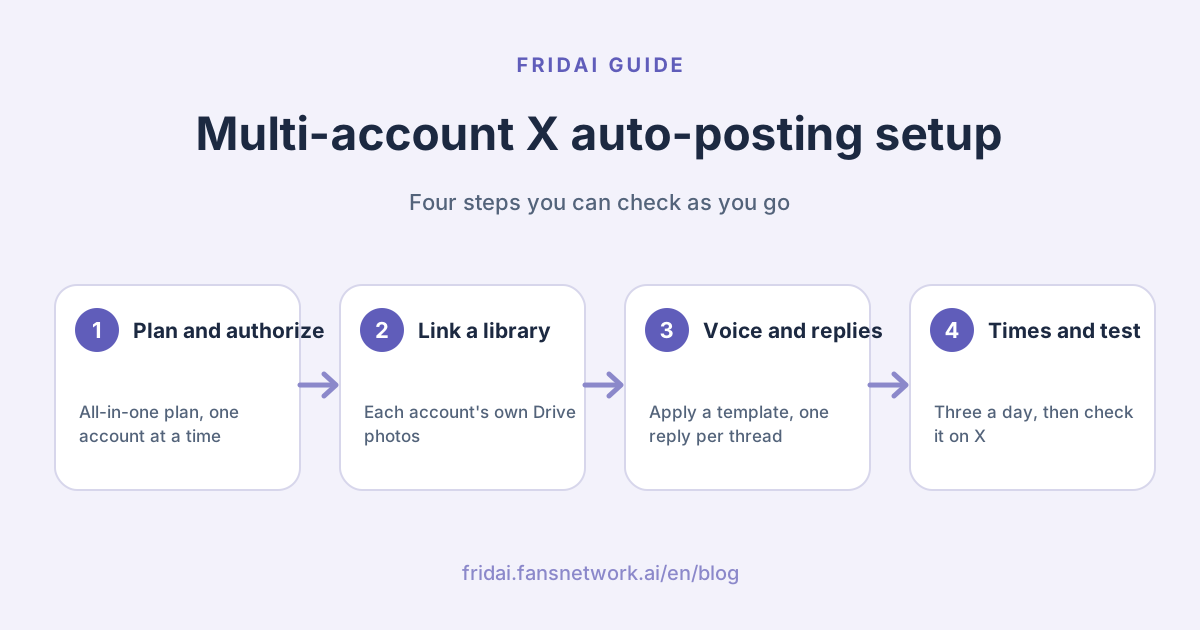
Pick a plan: X has one all-in-one plan
The X API bills every comment and DM an account receives, so FRIDAI sells X as a single all-in-one plan: comment replies, DM AI and auto-posting are always included. The three tiers only differ in how many accounts you can connect and how much you can use each month.

| Tier | X accounts | Comment/DM events per month | Auto-posts per month (shared) | Price |
|---|---|---|---|---|
| Launch | 1 | 500 | 30 | US$119 |
| Essential | 3 | 3,000 | 270 | US$499 |
| Enterprise | 20 | 5,000 | 1,800 | US$999 |
Here's the math: the auto-post allowance is shared by every account on the plan, and an account posting three times a day uses about 90 posts a month. Essential and Enterprise are sized as account limit × three a day: 3 accounts get 270 posts, 20 accounts get 1,800. Launch's 30 works out to one post a day, so start at Essential if you want three.
To subscribe, press “Add subscription” in the dashboard, choose X and a tier, and pay by card. You can also start with the US$1 experience: 50 events over 30 days to try the whole flow before upgrading.
Step 1: Authorize your first X account
After checkout, the X workspace opens with the “Get started” guide. The first step has a single button: “Authorize account 1”.

Before you reach X, FRIDAI asks you to confirm what automation may do: reply to public comments, read and reply to DMs, publish scheduled posts, and that you can pause or take over at any time. This consent is separate from X's OAuth permissions, and every item has to be ticked to continue.

You're then sent to X's own authorization page. Two things trip people up here:
- X authorizes whichever account is signed in to your browser. To add a second account, switch to it on x.com first or use a private window; otherwise you just re-authorize the same account.
- If “I trust this app” won't tick, scroll the permission list to the bottom first, and open the link in regular Safari or Chrome rather than an in-app browser.
Once authorized, you land on Quick Start and choose how this account begins: generate AI rules from its past posts, apply a posting template, or write your own rules. When in doubt, pick the first.

Step 2: Walk every account through the setup guide
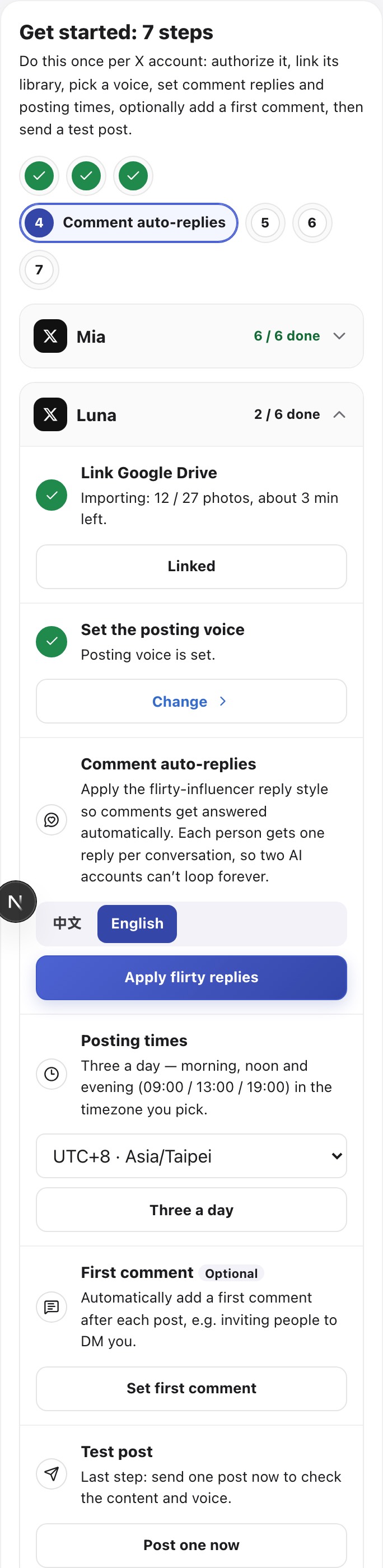
Back in the X workspace, each account gets its own checklist card. The dots at the top show the whole plan's progress, each card shows how many tasks that account has finished, and the blue button is always the next thing to do.

Link a Google Drive library
Each account uses its own Drive folder as its photo library, so it only ever posts its own photos. Three steps: make a photos-only folder, share it with the address shown (Viewer is enough — no need for “Anyone with the link”), then paste the folder link into the box and press Save.

Only JPG, PNG and WebP photos are imported; videos are skipped. Full-size phone photos are often over 10 MB, and FRIDAI resizes them for posting. Each takes about 10 seconds, and the guide shows “Importing: X / Y photos, about N min left”. Linked the wrong folder? Press “Remove this folder”: queued photos stop and the ones already imported leave this account's library.
Set the posting voice
“Set voice” opens the posting template library. Pick a style, pick Chinese or English, check the preview and what will change, then apply it.

The samples show the style only; real posts are written fresh for each photo and never copy the samples.
Comment auto-replies
Choose a reply language and press “Apply flirty replies”. From then on, comments under this account are answered automatically, and each person gets one reply per conversation. Even if the commenter is another auto-replying AI account, each side replies once and stops — no endless loop, and never silence.
Posting times
Choose a timezone and press “Three a day”. The account posts at 09:00, 13:00 and 19:00 in that timezone. Essential and Enterprise cover three a day for every account; on Launch, with 30 posts a month, pick one a day instead.
First comment (optional)
To add a first comment under every post, set it here. Start from the DM-invite or link template and make it yours; the {link} placeholder must be replaced with your own URL before it saves. Don't need one? Press “Not needed”.
Send a test post
Finally press “Post one now”. It takes about 20–40 seconds and includes the first comment if you set one. While the library has no photos yet, the button waits and tells you roughly when it will be ready — a text-only test post isn't a real test. When it's done, press “View on X” and check the caption, photo and first comment there.
What the finished workspace looks like
When all seven steps are done, an account's card collapses and shows a green “6 / 6 done”, so the page stays short however many accounts you add. Tap a card to open it again.

On a phone it's the same guide: the steps shrink to a row of dots with only the current one labelled, and every action is a full-width button.
How posting works once it's set up
| What you'll see | How often | Where to check |
|---|---|---|
| Each account posting its own photos | Per posting times, e.g. three a day | The X profile and FRIDAI's post history |
| A first comment under each post | Once per post, if set | The first reply under the post on X |
| Automatic replies to comments | One per person per conversation | The reply thread on X |
With the English “Flirty influencer” template, a post is one playful line or small question about the photo, such as “be honest… would u debug through this look or hang up?😏”. That's an example of the style, not a promise of results; reach and engagement still depend on your photos, the account and X's rules at the time. Run it for a week, then adjust the voice and frequency from the post history.
FAQ
How many X accounts can one plan hold?
Launch holds 1, Essential 3 and Enterprise 20. All accounts share the plan's comment/DM events and monthly auto-posts.
Why did authorizing a second account just re-authorize the first one?
X authorizes the account currently signed in to your browser. Switch to the second account on x.com or sign in to it in a private window, then press authorize again.
Why did Google Drive import only a few photos?
Videos are skipped; only JPG, PNG and WebP photos are imported. Each photo takes about 10 seconds and the guide shows the progress, so large folders need a few minutes.
Will two AI accounts keep replying to each other?
No. Each person gets one automatic reply per conversation, AI accounts included, so each side replies at most once.
Why won't the test post go out without a photo?
These accounts write captions from photos, so a text-only test isn't a real test. The button opens as soon as the first photo is imported.
How FRIDAI can help
If you run several X accounts, FRIDAI Post keeps each one posting its own photos in its own voice on schedule, and FRIDAI Social picks up the comment replies and DMs. Get one account to seven green checks, read a week of post history, then copy the setup to the rest — turning on many accounts at once also means making the same mistake many times at once.
- Auto-posting and first comments: FRIDAI Post
- Comments and DMs: FRIDAI Social
- DM customer service: FRIDAI Chat
- Instagram: FRIDAI on Instagram
- Threads: FRIDAI on Threads
- Facebook: FRIDAI on Facebook
Official sources
- X API, creating posts and replies: docs.x.com/x-api/posts/create-post
- Google Drive, sharing files and folders: support.google.com/drive/answer/2494822
- FRIDAI X all-in-one plan: FRIDAI Post