
The hard part of switching booking systems is rarely the new system. It is the hundred or so customers who are already booked. Retyping them takes hours and one wrong time means a double booking, yet leaving them behind risks both systems selling the same slot.
This guide walks through both paths: moving old bookings in with AI, and letting the old system's calendar block times during the changeover. Every step has a dashboard screenshot.
The screenshots show the dashboard in Traditional Chinese. The English dashboard has the same layout, and each step names the button you need.
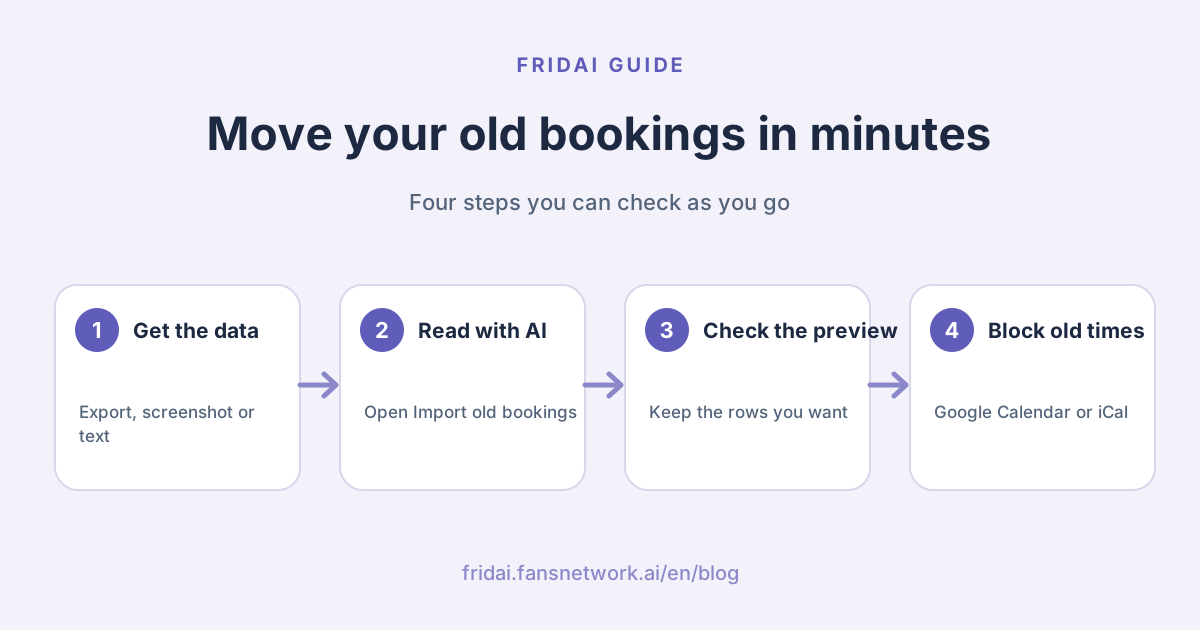
Move them in or block the times? Pick your path
You can use one path or both. Start with what your old system can give you:
| Your situation | Best path |
|---|---|
| Old system exports Excel or CSV | Import old bookings, most accurate |
| You can only see the calendar | Screenshot it and import |
| Bookings live on paper, notes or LINE | Paste the text and import |
| Old system syncs to Google Calendar | Connect that calendar to block times |
| Old system offers an iCal link | Paste the link to block times |
| Old system stays open a few weeks | Block times first, switch it off later |
The combination we suggest most: import the upcoming bookings so the new booking calendar shows every customer, and if the old system will keep taking bookings for a few weeks, connect its calendar to block times so the two never clash.
Before you start: get the data out of the old system
The more complete the data, the more accurately AI reads it. Each booking needs at least a date, a start time and a customer name; phone, service, staff and party size make it complete. You do not need to rename or reorder columns, AI understands them.
- Export file: in the old system's admin, look for Export, Download report or Excel and pick dates from today onward. Excel (.xlsx) and CSV both work.
- Calendar screenshots: switch to week or list view and capture one week at a time with names and times readable, up to 6 images.
- Pasted text: bookings from paper, LINE Keep or your notes app, one per line.
- .ics calendar file: if the old system gives you a calendar file, upload it directly.
No export option? Click the link to download the template in the import window, fill in the columns and upload it.
Step 1: Open Import old bookings in the booking system
In the Dashboard, open the booking system, find the Import old bookings card and click its Import old bookings button. The card sits just above Google Calendar sync; the Import ICS file button next to it is a separate entry for whole calendar files.

Step 2: Pick the source that suits you
The window shows three steps at the top: Upload, Preview and Done. The first page lists three sources. Choose whichever you have; AI reads the date, time, customer, service and staff, shows you a preview, and creates nothing until you confirm.

The box at the bottom about not moving old bookings is the other path, covered in the calendar section below.
Step 3: Upload the file or paste the text, then Read with AI
Drag files or screenshots into the dashed box or click to choose them, or paste bookings into the text box. You can give both and AI reads them together. Then click Read with AI in the bottom right.

A small tip: a file with months of history is fine. Past bookings are marked in the preview and are never imported.
Step 4: Check the preview and tick the bookings to import
AI lists how many bookings it found and how many can be imported. Each row shows the customer, service, staff, date and time, party size and phone, and importable rows are ticked for you.

The top of the preview explains each status in one line. Use this table to decide what to do:
| Status | Meaning | What to do |
|---|---|---|
| Ready | Complete and no clash | Keep it ticked |
| Past | Dated before today | Nothing |
| Already there | Same time and customer already booked, or repeated in the file | Nothing |
| Time clash | Same staff member already booked at that time | Check the calendar, then add it |
| Incomplete | Missing the date or start time | Fill it in and read again |
Untick anything you do not want, or use Select all and Select none. Then click Import N in the bottom right.
Imported bookings join your booking list quietly: customers get no message and nothing is written to Google Calendar, so the move is invisible to them.
Step 5: Done, then follow the three next steps
The done page shows how many bookings were imported and, if a slot was taken while you were importing, how many were skipped. Below it are three next steps:

- Open the booking calendar and check the times and staff.
- Keep the old system on for now and connect its calendar to block times, so the two never clash.
- Share the new booking link in your DMs and social profiles so new bookings come straight into FRIDAI.
Block times from your old calendar during the changeover
If you do not want to move the data, or the old system keeps taking bookings for a few weeks, let its calendar block times. Click the button to use the calendar instead in the import window and you land on Google Calendar sync. There are two ways to connect:

Old system syncs to Google Calendar: turn on Google Calendar sync and connect your account, then tick the calendar the old system writes to under the busy-only option for your old booking system. Its events block the same times here. FRIDAI only reads these calendars and never writes to them.
Old system offers an iCal subscription link: paste the link starting with .ics or webcal:// into the old booking system's iCal field and give it a name such as Old booking system. Click Test to see how many bookings it finds in the next 60 days, then click Add. This works without a Google account, and you can add up to 5 links.
Once connected, the online booking page, the AI's answers about open slots, and new or changed bookings all avoid those times. If a link cannot be read for a moment, online booking pauses so no possibly taken slot is offered, and it reopens by itself once the link works again.
When the old system stops taking bookings and its upcoming customers have all come in, click Remove to drop the link and the move is complete.
Changeover week checklist
| When | What to do |
|---|---|
| Day before | Export bookings from today onward |
| Switch day | Import old bookings and check the calendar |
| Switch day | Connect the old Google Calendar or iCal link |
| Switch day | Put the new booking link in DMs, profiles and menus |
| First week | Check the booking calendar daily for repeats |
| Old system closed | Remove the blocking calendar and finish |
Summary: move them in or block the times, both are quick

A quick note from FRIDAI
Switching booking systems does not mean retyping everything. Hand it to me and I will read it for you. Here is the smoothest way:
- Export upcoming bookings, or use screenshots or pasted text
- Click Read with AI in Import old bookings and check the preview
- Past and existing bookings are skipped, clashes and gaps are flagged
- While the old system runs, connect its Google Calendar or iCal link
- Share the new booking link so new customers come straight in
Open Import old bookings now and let me read next week's bookings for you.
FAQ
Does importing old bookings notify customers?
No. Imported bookings join your booking list quietly. Customers get no message and nothing is written to Google Calendar.
What if my old system has no export?
Use calendar screenshots or paste the text, AI reads both. You can also download the template in the import window, fill it in and upload it.
Why do some bookings show as incomplete?
The booking is missing its date or start time, and AI does not guess. Add the missing detail to the file or text and read it again.
Will importing the same file twice create duplicates?
No. A booking with the same time and customer as one already in your list shows as already there and is skipped.
Where do I find the iCal subscription link?
Most booking systems have it under calendar sync, subscribe to calendar or export to Google or Apple Calendar settings, as a link starting with .ics or webcal://. Copy it and paste it into FRIDAI.
Will FRIDAI change my old calendar?
No. The old system's Google Calendar and iCal link are only read for busy times. FRIDAI never writes to or edits their events.
How FRIDAI can help
FRIDAI connects bookings, DMs and social in one flow: customers ask about open slots on LINE, Instagram or Facebook, AI checks the booking system, answers and books them in. Old bookings can be moved in or block their times, so you can take new bookings on the day you switch.
- DM AI customer service and bookings: FRIDAI Chat
- Comment replies: FRIDAI Social
- Instagram: FRIDAI Instagram
- Threads: FRIDAI Threads
- Facebook: FRIDAI Facebook
Official sources
- FRIDAI Chat, DM AI customer service and bookings: fridai.fansnetwork.ai/
fridai-chat - Google Calendar Help, add a public calendar from a link: support.google.com/
calendar/ answer/ 37100?hl=en - iCalendar (.ics) format, RFC 5545: www.rfc-editor.org/
rfc/ rfc5545