
You may already use ChatGPT for marketing ideas and copy, then switch to the FRIDAI dashboard to check your AI customer service. With the FRIDAI plugin, both happen in the same conversation.
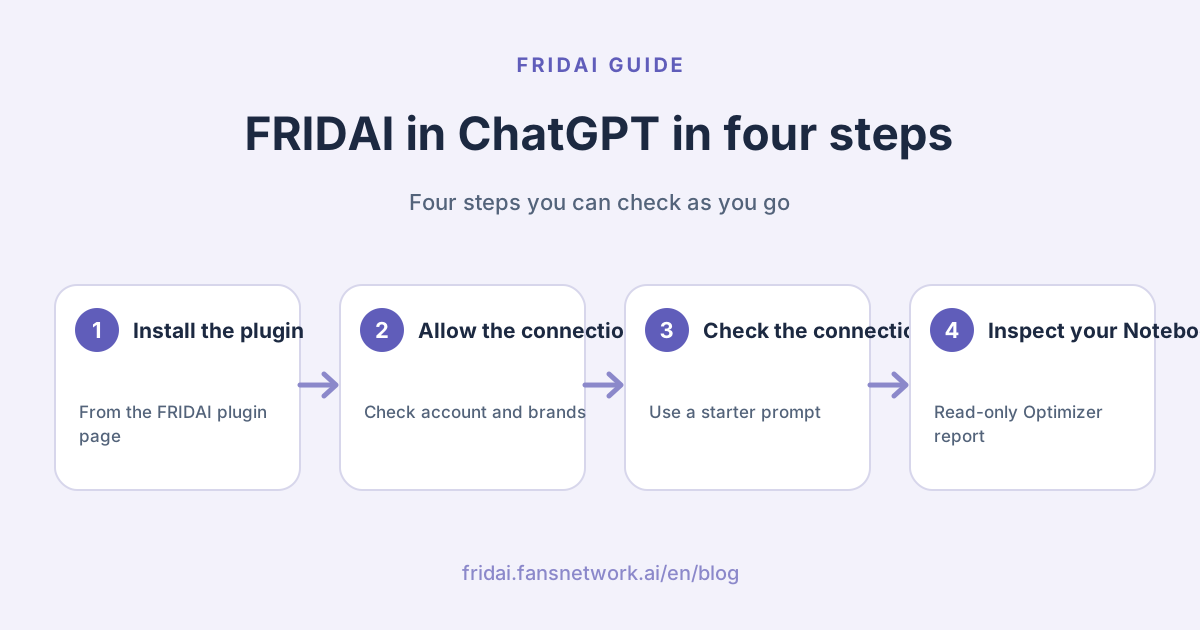
This guide walks through seven steps: open the plugin page, install, check the authorization page, allow the connection, use FRIDAI in a chat, ask the Optimizer to inspect a Notebook, and manage or remove the plugin. Every step has a real desktop and phone screenshot.
What can the FRIDAI plugin do in ChatGPT?
The FRIDAI plugin is FRIDAI MCP packaged for ChatGPT's plugin directory. Once installed, ChatGPT can use your FRIDAI account to read your brands, AI Notebooks and reply settings, and adjust them after you confirm.
The three things people use most:
- Check the connection and brands: one sentence lists the brands you manage, your auto-posting workspaces, and which social accounts need to be reconnected.
- Inspect an AI Notebook: the built-in FRIDAI Notebook Optimizer reads the current Notebook and recent customer conversations, points out conflicting rules and missing business facts, then suggests changes.
- Explain the products: not sure whether you need FRIDAI Chat or FRIDAI Social? Ask, and it answers based on your account.
The authorization page lists everything the connection can do. Every change is previewed first and runs only after you confirm; cancelling a subscription, downgrading and refunds are not available.
Plugin or pasted MCP URL: what's the difference?
FRIDAI connects in two ways. Both use the same FRIDAI MCP; only the setup differs:
| Compare | ChatGPT plugin | Pasted MCP URL |
|---|---|---|
| Best for | ChatGPT web users | Claude, Codex and other AI tools |
| Setup | One click on the plugin page | Copy the URL from MCP Settings |
| Sign-in | FansNetwork.ai authorization | FansNetwork.ai authorization |
| New features | Arrive as OpenAI reviews them | Available on launch day |
If you only use ChatGPT, the plugin is the fastest. To use brand-new features right away, or if you mainly use Claude or Codex, paste the URL as described in the FRIDAI MCP guide. You can use both at once.
Before you start: check three things
- You have an active paid FRIDAI subscription. The authorization page lists the brands this account manages; if none appear, check your subscription in the dashboard first.
- You are signed in to ChatGPT. This guide uses ChatGPT on the web; the steps are the same in a desktop or phone browser.
- Authorization only happens on FansNetwork.ai. It is FRIDAI's official dashboard and MCP domain. Don't sign in anywhere else.
Step 1: Open the FRIDAI plugin page and click "Install plugin"
In ChatGPT's sidebar, click "Plugins" and search for FRIDAI, or open the FRIDAI plugin page directly. Check that the developer is "By FansNetwork Inc.", then click "Install plugin" at the top right.

Note the three starter prompts in the middle of the page. You'll use one in Step 5.
Step 2: Check your account and brands on FansNetwork.ai
After you click install, ChatGPT takes you to the "FRIDAI secure authorization" page on FansNetwork.ai. Sign in to FRIDAI first if you aren't already.

Check three fields before you go on:
- Signed-in account: the email you normally use for FRIDAI.
- Managed brands: the right number. Brands shared with you with full access are included.
- MCP: shows ChatGPT, and you return to chatgpt.com after approval.
If the account is wrong, click "Cancel", switch to the right FRIDAI account and install again.
Step 3: Read the permissions and click "Allow connection"
Scroll down to see what the connection can do: manage customers, bookings, notifications, comments, interactions, patrol, ads, products, posting media and immediate publishing, and read usage, invoices and upgrade options. What you can actually use follows your subscription and platform permissions.

FRIDAI hands the token directly to ChatGPT, so you never copy, paste or send an API key. When everything looks right, click "Allow connection".
Step 4: Back in ChatGPT, look for "FRIDAI plugin installed"
You return to the plugin page automatically. A "FRIDAI plugin installed" notice appears, and the install button becomes "Manage" and "Try in chat".

Those two buttons mean the plugin is ready.
Step 5: Check the connection with a starter prompt
Click the first starter prompt, "Check my FRIDAI connection and manageable brands." ChatGPT opens a new chat with the FRIDAI tag and the sentence already in the box. Just send it.

In any new chat later, type "@FRIDAI" followed by your request to use FRIDAI.
It replies with a connection card: authenticated, the number of brands you manage, and the Notebook Optimizer marked Ready.

Below the card it lists each brand's platforms and any auto-posting accounts that need reconnecting. This step only reads data and changes nothing.
Step 6: Ask the Optimizer to inspect an AI Notebook
With the connection confirmed, pick a brand and ask the Optimizer to inspect it. For the first run, FRIDAI recommends saying:
- "Use FRIDAI Notebook Optimizer to inspect the Notebook of (brand name). Don't change anything yet."
It reads the Notebook and recent customer conversations, then replies with an inspection report showing the current status, such as "Needs revision", and marks it as a read-only inspection.

The summary card at the top shows how many structural checks passed, how long the Notebook is, whether AI replies are on, and whether reply quality has been tested.

Further down are the issues one by one, with suggested fixes. When you're ready, say "apply suggestions 1 and 3". It shows a before-and-after comparison first and saves to the Notebook only after you confirm.
Step 7: Manage permissions, accounts or remove the plugin
Click "Manage" on the plugin page to open ChatGPT's plugin settings.

Three things you can do here:
| What you want | Where |
|---|---|
| When ChatGPT asks first | Permission |
| Add another FRIDAI account | Connect another account |
| Remove FRIDAI | Uninstall |
Tip: if you manage accounts for several companies, connect each FRIDAI account with "Connect another account" and name the brand in every request, so changes always land in the right place~
Five handy requests for the FRIDAI plugin
Copy these once the plugin is installed, replacing the brand in brackets:
| What you want | Say this |
|---|---|
| See the status | "List my FRIDAI brands and flag accounts that need reconnecting" |
| Check a Notebook | "Use the Optimizer on (brand)'s Notebook, don't change anything" |
| Find reply issues | "Review (brand)'s recent AI replies for wrong answers or missed handoffs" |
| Edit a Notebook | "Make (brand)'s Notebook tone more casual, show me before and after" |
| Pick a product | "My shop gets most questions in IG comments: FRIDAI Chat or Social?" |
Name the brand, say what you want, then add "show me first" or "don't change anything yet". The answers get much sharper.
Summary: manage AI customer service with the FRIDAI plugin in ChatGPT

A quick note from FRIDAI
You now have the FRIDAI plugin in ChatGPT. Whenever you want to check a brand, inspect a Notebook or adjust a setting, open a chat and say it.
Keep these in mind:
- On the plugin page, confirm "By FansNetwork Inc." before you click "Install plugin".
- On the authorization page, check the account and brand count before you click "Allow connection".
- Start with a starter prompt, then ask the Optimizer for a read-only inspection.
- To change something, say "show me a preview first" and confirm before it saves.
- For the newest features right away, also connect the URL from MCP Settings in the dashboard.
Once it's installed, send me "check my FRIDAI connection" and let's get started~
FAQ
Does the FRIDAI plugin for ChatGPT cost extra?
FRIDAI does not charge separately for the plugin. It uses your existing FRIDAI subscription and quota, and the brands and features you can manage follow your subscription.
Do I need to paste an API key during setup?
No. You sign in on FansNetwork.ai and click "Allow connection". FRIDAI hands the token directly to ChatGPT, so you never copy, paste or store a key.
Will ChatGPT change my settings on its own?
No. Every change is previewed first and runs only after you confirm. You can also use "Permission" in the plugin settings to decide when ChatGPT asks you first.
Why can't I find a feature that just launched in the dashboard?
Features in ChatGPT's plugin directory open up as OpenAI reviews them. To use a new feature right away, copy the connector URL from MCP Settings in the FRIDAI dashboard and connect it as described in the FRIDAI MCP guide.
I manage several brands. Could it change the wrong one?
The authorization page shows how many brands you manage, and once connected you can ask for the full list. Name the brand and platform in each request, and it confirms which one before making a change.
How do I remove the FRIDAI plugin?
Click "Manage" on the plugin page, then "Uninstall" in the plugin settings. To use it again later, install it from the plugin page and authorize once more.
Can I install it on my phone?
Yes. Open ChatGPT in your phone's browser and the plugin and authorization pages switch to a vertical layout with the same buttons and steps. Every screenshot in this guide has a phone version.
How FRIDAI can help
FRIDAI Chat answers DMs from the AI Notebook you write and notifies you when a person should step in. With the FRIDAI plugin in ChatGPT, you can inspect Notebooks, review replies and adjust settings in a conversation instead of hunting through the dashboard.
For every way to connect and everything you can ask, see the FRIDAI MCP guide. If you use Claude or Codex, see set up DM keyword auto-replies with an AI assistant and manage auto-posting with an AI assistant.
- DM customer service: FRIDAI Chat
- Comment engagement: FRIDAI Social
- Content publishing: FRIDAI Post
- Instagram: FRIDAI Instagram
- Threads: FRIDAI Threads
- Facebook: FRIDAI Facebook
Official sources
- FRIDAI plugin page in ChatGPT: chatgpt.com/
plugins/ plugin_asdk_app_6ad85d8b1d148191aae2f6d10f827654 - FRIDAI MCP guide: fridai.fansnetwork.ai/
en/ mcp - Model Context Protocol introduction: modelcontextprotocol.io/
introduction