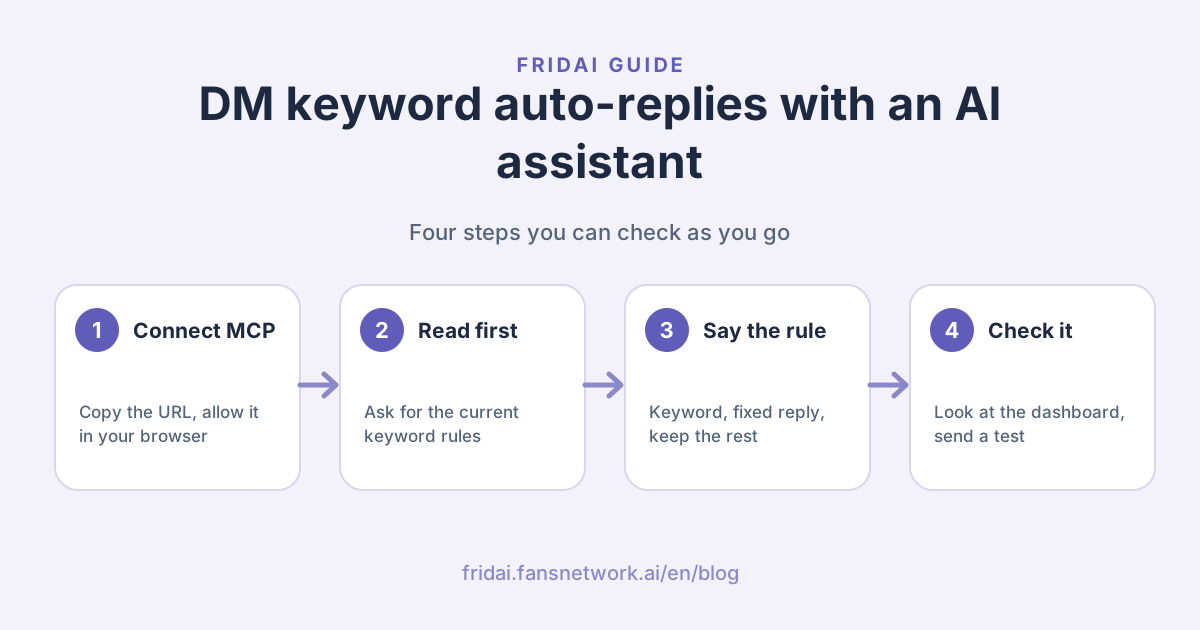
This guide walks you through the whole thing: installing Claude, connecting FRIDAI MCP, confirming the connection, reading the existing rules, adding your first keyword reply, switching it on and checking it in the dashboard. No code, and no keys to copy.
What is a DM keyword auto-reply, and how is it different from AI replies?
A DM keyword auto-reply means “when a customer's message contains a certain word, send the reply you wrote in advance”. It does not go through AI, so the answer is identical every time. That suits opening hours, your address, a price list link or a booking link: questions that should never have a second version of the answer.
People often mix it up with two other features, so sort them out first:
| Feature | Triggers when | What it sends | Good for |
|---|---|---|---|
| DM keyword auto-reply | A DM contains the keyword | The fixed reply you wrote | Hours, address, links |
| AI reply | Any DM arrives | AI writes it from your Notebook | Conversations needing judgment |
| Comment-to-DM | Someone comments a keyword on one post | A public reply plus a DM | One post's campaign or giveaway |
This guide covers the first one. If you are on a comments plan, the same keyword list applies to comments instead, and you set it up the same way.
The quota works differently too: keyword replies use no AI, and 3 keyword replies count as 1 AI reply. Fixed answers go to keywords, and your AI quota is kept for conversations that actually need thinking.
Before you start: three things to check
- Your account has an active paid subscription. Free, trial and demo accounts do not show “MCP Settings”. If you have just paid, refresh the dashboard.
- You have a Claude or ChatGPT account. Claude works in the browser or the desktop app, and even the free plan can add one custom connector. Codex lives in the ChatGPT desktop app.
- Authorization only happens on FansNetwork.ai. That is the official domain of the FRIDAI dashboard and MCP. If you see any other address, don't sign in.
Step 1: Install and sign in to Claude or Codex
Already using one of them? Skip to step 2.
- Claude: download the Mac or Windows version from claude.com/
download , install it and sign in. Prefer not to install anything? Open claude.ai in your browser instead. A regular Claude chat can connect to FRIDAI; you don't need Claude Code. - Codex: download the ChatGPT desktop app from chatgpt.com/
download , sign in, and choose “Codex” from the menu in the top-left corner.
Step 2: Copy the connector URL from “MCP Settings”
Sign in to the FRIDAI dashboard and find “MCP Settings” in the left menu.

Under “Which AI tool do you use?”, pick yours. With “Claude (web / app)” chosen, click “Copy connector URL”. “Open Claude connectors” next to it takes you straight to Claude's connector settings.

The URL is only a connection address. It contains no key, and at no point do you need to copy or store an API key.
Step 3: Paste the URL into Claude or Codex
- Claude: in the left sidebar click “Customize” → “Connectors”, then “Add” in the top-right corner → “Add custom connector”. Enter FRIDAI as the name, paste the URL and click “Continue”. Leave the next page as it is and click “Add”.
- Codex: in the ChatGPT desktop app open “Settings” → “MCP servers” and click “Add server”. Enter FRIDAI as the name, choose “Streamable HTTP” as the type and paste the URL. Once it is saved, click “Restart”.
Step 4: Sign in to FRIDAI in your browser and click “Allow connection”
Click “Connect” in Claude (“Authenticate” in Codex) and your browser opens the authorization page on FansNetwork.ai. After signing in, check two things: the account is yours, and the number of brands is right.

Keyword replies use two items on that list: “Read Notebooks and Reply Settings” lets it see the current rules, and “Update Reply Settings with safety checks” lets it save for you. When everything looks right, click “Allow connection”.
Step 5: Go back to your AI assistant and confirm it is connected
Start a new chat in Claude or Codex and paste this:
- “List the FRIDAI brands I can manage.”
The first time, Claude asks whether it may use FRIDAI's tools; click “Allow once” or “Always allow”. If you can see your brand names, you are connected. If this chat cannot find FRIDAI, start a new chat and try again.
Step 6: Ask it to read the current keyword replies first
Look before you change anything. This step only reads:
- “Show me the DM keyword auto-replies for (brand name): are they on, which keywords exist and what does each one reply?”
It lists them per account: whether the feature is on, each rule's keyword, how it matches, the replies, and whether there is a random wait before sending. When a brand has several accounts, such as one Instagram and one Facebook, it lists them separately and asks which one you want to change.
In the dashboard this lives under “Keywords” in the left menu. An account that has never been set up looks like this, switched off and with no rules yet:

Step 7: Add a keyword reply in one sentence
Say three things clearly: which account, which keyword, and what to reply. You can adapt this:
- “On (brand name)'s Instagram DMs, add a keyword auto-reply: when a message contains ‘opening hours’, reply ‘We are open 11:30–21:30 every day except Monday. Book a table here: (your booking link)’. Keep all the existing rules, and switch keyword auto-replies on.”
It adds the new rule after your existing ones, saves, and reports the complete list. A few phrasings people ask about:
| What you want | How to say it |
|---|---|
| Reply when the word appears | “If it contains ‘price’, reply …” |
| Reply only to that exact word | “Only when it exactly matches ‘1’, reply …” |
| Vary the wording | “Prepare three versions and pick one at random” |
| Pause one rule | “Turn off the ‘anniversary sale’ rule but don't delete it” |
| Sound less like a machine | “Wait a random 5 to 15 seconds before sending” |
| Stop everything for now | “Switch keyword auto-replies off and keep the rules” |
Three places people trip:
- Always say “keep all the existing rules”. It saves the account's whole list, so a rule you did not mention may be treated as no longer wanted. Ask it to read back the final list after every change.
- Use exact match for very short keywords. A word like “1” or “ok” with “contains” will catch a lot of unrelated messages.
- A message only triggers the first rule it matches. If two keywords can appear together, put the more important rule first.
You can also hand over several at once: paste your common questions as a list and ask it to turn each one into a keyword reply.
Step 8: Check the rule and the switch in the dashboard
What your AI assistant saved is the same setting you see in the dashboard. Open “Keywords” and check three things: “Enable Keyword Auto-Reply” is on, the keyword and match type are right, and the reply text and link have no typos.

Finally, message your brand from another account with the keyword and confirm you get that exact reply. Click the link too. A wrong URL is the most common slip, and a keyword reply is dutiful: it will send the wrong link, word for word, to every customer.
Which rules does it leave alone?
You may see a few rules marked as managed by the system: rules synced to Facebook from a linked Instagram account, rules set under another plan for the same account, or rules FRIDAI created for a comment-to-DM flow. Your AI assistant can see them but does not change or delete them. To adjust one, edit it in the account or feature it came from.
If you turned on syncing to a linked Facebook Page, keyword changes made on the Instagram account still sync to the Page, just as they do when you edit in the dashboard.
When should you not use keyword replies?
Keyword replies are fast and steady, but they do not read context. Leave these to AI replies:
- The answer depends on the customer. “Do you have a table?” depends on the date and party size; a fixed line only makes them ask again.
- Customers phrase it in many ways. When one question has a dozen wordings, writing the facts into your AI Notebook beats adding keywords one by one.
- The keyword is too common. A word like “hello” or “thanks” would intercept almost every message, and the AI never gets to answer.
Our approach: give keywords the three to five most frequent fixed-answer questions and leave the rest to AI. After a week or two, ask your AI assistant what customers asked most this week, then decide whether to add more.
FAQ
Which platforms support DM keyword auto-replies?
Every platform where FRIDAI handles private messages, including Instagram, Facebook, LINE and Telegram. Each account has its own rule list, so say which brand and which account when you ask.
How is setting it up through MCP different from the dashboard?
It is the same setting, reached a different way. The dashboard suits careful one-by-one edits. An AI assistant suits creating many rules at once, changing replies in bulk, or asking about the current state before you touch anything.
Will my AI assistant overwrite my existing rules?
It saves the whole list, so make it a habit to say “keep all the existing rules” and ask for the complete list afterwards. Each update also returns what was there before, so if something looks wrong you can ask it to put it back right away.
What if a teammate edits at the same time?
Nothing is silently overwritten. Before saving, the version it read is compared with what is stored. If someone changed the rules in the dashboard in the meantime, the save is refused and the latest rules need to be read again.
Do keyword replies use AI quota?
A little: 3 keyword replies count as 1 AI reply. They do not go through AI, so they cost far less than having AI answer every message.
My AI assistant says it has no permission to change this. What now?
The connection lacks the permission to update Reply Settings; reading still works. Reconnect FRIDAI in Claude's connector settings, check that “Update Reply Settings with safety checks” is on the authorization page, and click “Allow connection”.
Can it set up comment-to-DM on a post?
Yes, but that is a different feature: comment-to-DM belongs to a single post and is set when you schedule that post. A fixed reply to a keyword sent in a private message is what this guide covers.
How FRIDAI can help
FRIDAI Chat splits private messages into two lanes: questions with a fixed answer go to keyword replies, instant and consistent, and conversations that need judgment go to an AI that answers from your Notebook and notifies you when a person should step in. With FRIDAI MCP connected, you can adjust both by asking, without opening the dashboard each time.
For the full picture of what MCP can do, see the FRIDAI MCP guide.
- Private-message support: FRIDAI Chat
- Comment engagement: FRIDAI Social
- Social auto-posting: FRIDAI Post
- Instagram: FRIDAI Instagram
- Threads: FRIDAI Threads
- Facebook: FRIDAI Facebook
Official Sources
- Based on the actual FRIDAI dashboard screens for MCP Settings, Keywords and the authorization page; brands, accounts and replies shown are sample data.
- Model Context Protocol introduction: modelcontextprotocol.io/
introduction