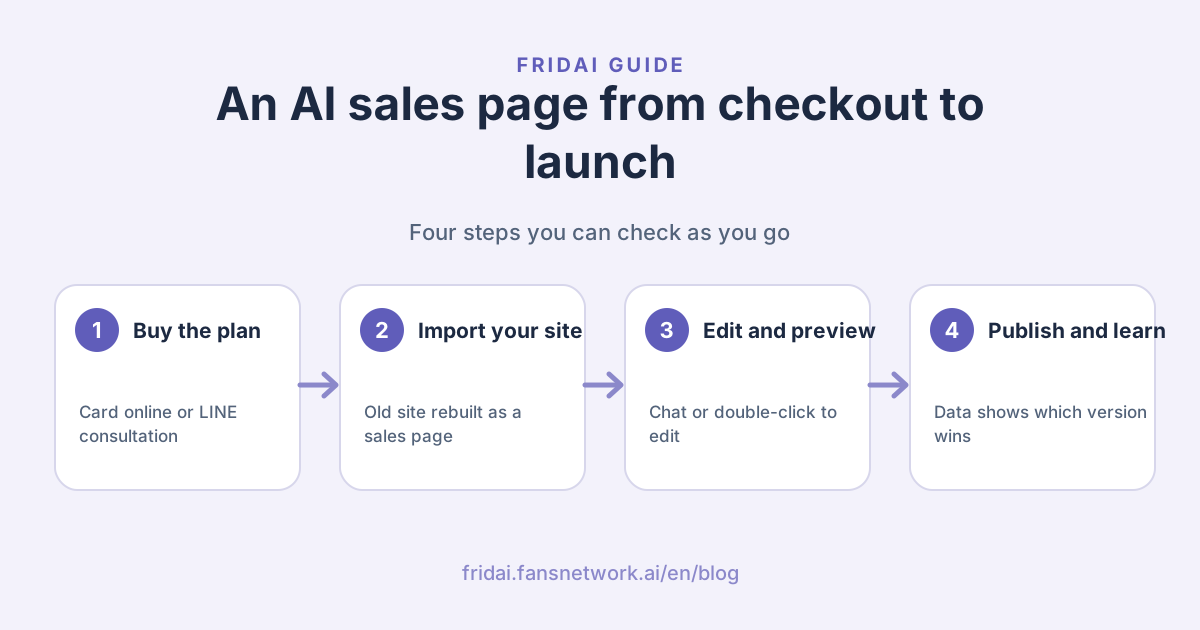
The path from purchase to launch
The whole process has seven steps. You only do the first two once; everything from step three onwards is what you will use day to day. The dashboard is in Traditional Chinese, so the original button labels are given in brackets where it helps.
Step 1: Find AI Sales Pages on the product page or in New Subscription
There are two ways in, and both show the same plan and price.
The first is the FRIDAI AI Sales Pages product page. The hero section has a "Buy online" and a "Book a LINE consultation" button, with the setup fee, renewal fee, free import of your old site and the yearly AI edit allowance listed underneath.

The second is inside the FRIDAI dashboard. Click New Subscription (新增訂閱) and, under Choose service type, pick the AI Sales Pages (AI 銷售頁) card.

A plan summary opens: a one-off guided setup of NT$50,000 (first year included), then NT$18,000 per year from the second year, plus what the plan includes. It also states that Fridai Website Chat, the AI chat in the bottom-right corner, is a separate paid add-on. Choose View plan and buy (查看方案並購買) to go ahead, or Book a LINE consultation (LINE 預約諮詢) if you still have questions.

Step 2: Pay by card online, or book a LINE consultation first
View plan and buy takes you to the Sales Pages section of the dashboard. Before you have bought, it shows the plan: price, inclusions, and two buttons, Pay by card online (線上刷卡購買) and Book a LINE consultation.

You need to log in or register a FRIDAI account first. You can buy AI Sales Pages on its own even if you have no other FRIDAI plan. Payment is by card in Taiwan dollars (TWD). Once it goes through, AI Sales Pages is switched on for your account automatically, and we contact you within 1 business day to arrange the guided setup and the 1-hour onboarding session.
The plan includes:
- Free import of your existing website, including sub-pages and carousels.
- Material clean-up and custom scene and service images; portraits always use your real photos, never AI-generated people.
- Binding your own domain; if we buy a domain for you, it costs the domain's actual price plus NT$300 per year.
- 6 design templates and a 1-hour onboarding session.
- Tracking of CTA clicks and bookings, automatic testing of headline and button text, section re-ordering, and traffic-source insights.
- 1,200 AI edits per plan year; double-click text edits are free and unlimited.
- 3 free website blog posts per plan year.
After buying, open Settings and look at the Plan and billing (方案與付款) card. It shows the date your service is paid through and lets you manage your payment card and renewal. You can cancel renewal at any time and the service runs until the end of the paid period.
Step 3: Paste a URL to import your existing website
After payment, open Sales Pages and the first screen is Create a new sales page. If you already have a website, a one-page site or a Linktree-style page, Import existing website (匯入現有網站) is the quickest route:
- Paste your address into the existing website URL field.
- Tick the box confirming it is your own website or that you have permission to use its content and photos.
- Click Import and rebuild as a sales page (匯入並重組成銷售頁).

The AI keeps your copy, testimonials and photos and rebuilds them into a one-page sales site in a conversion-friendly order. Sub-pages such as your story, press coverage and news come across too, and images are re-hosted so nothing links back to the old site.
No website yet? Switch to Fill in manually (手動填寫), enter your brand and service details, and the AI writes the full page copy. Open Suggested materials to see which information makes the page more convincing.
Step 4: Edit your site by chat or by double-clicking
After the import you will see the sales page workspace: the page address and publish controls, plus six tabs: AI Edit, Results, Settings, Domain, Blog and SEO, and Sales SOP.
Edit by chat in the AI Edit tab
AI Edit (AI 編輯) has a chat box next to a live preview of your draft. Tell the AI what to change: a new headline, an extra FAQ, a different section order, new photos or another template. Not sure where to start? Tap one of the suggested edits, such as "shorten every paragraph so it reads better on phones".

The screen shows how many AI edits you have used this plan year and when the count resets. Only edits that actually change the page count; questions and failed edits are free. If you run low, you can top up 50 edits for NT$300.
The AI editor handles text, images, prices, FAQs, section order, templates, colours and button links. New features, membership or payments, multi-page apps and code changes are out of scope; for those, plan a separate project with a development team.
Double-click text to edit it directly
For a typo or a single sentence, skip the AI. Double-click the text in the preview, and once it switches into editing mode just type. These edits are free and unlimited.
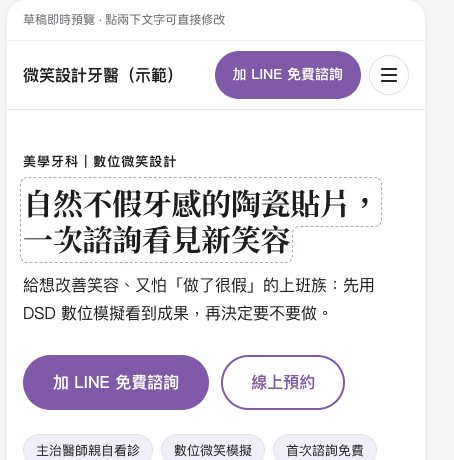
Add material, pick a template and change images in Settings
Settings opens with a Suggested materials checklist: brand logo, a portrait of you, credentials, specialties, client testimonials, services and prices, press coverage, video, and your LINE or booking link. Provided items are ticked. Sections you have no material for are hidden automatically, so the site never shows blanks or placeholder data.

If images from your old site's articles or carousels were missed in the import, use Fetch images again (補抓圖片) under Fetch images from the original website. It only brings images back, never touches text you have edited, and puts the result in your draft until you publish.
Next is Templates and images. Switch between the 6 templates with one click. Generate custom images creates hero and service scene images in the current template's style, and each one can be regenerated on its own. AI images are only for atmosphere and service illustrations; always upload real photos of yourself, your clients and real results.
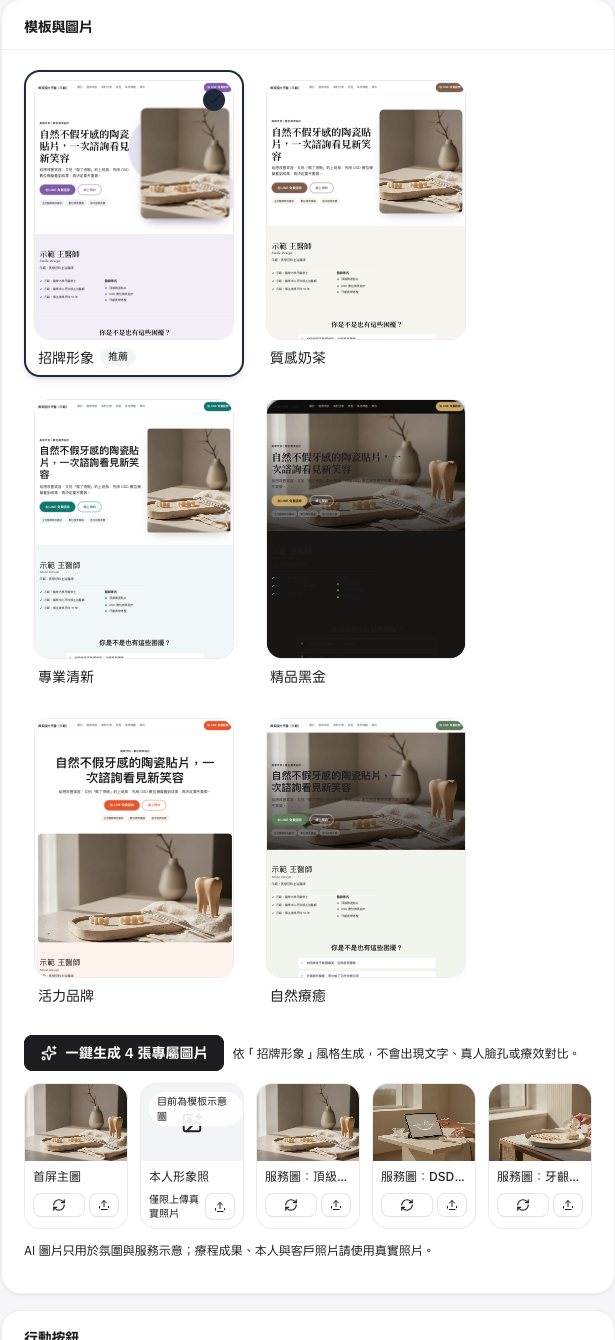
Set up action buttons, the booking form and the website AI chat
Action buttons decide where visitors go when they click. Each button has its text, a type (for example Add on LINE or On-page booking form) and a link; mark one as the primary button. Use Add button for more.
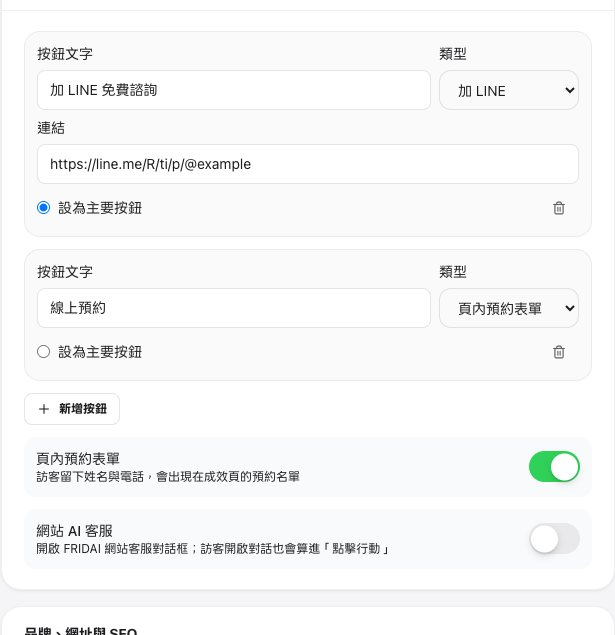
There are two switches:
- On-page booking form: visitors can leave their name and phone number on the page, and the entries appear in the Results tab.
- Website AI chat: adds the Fridai Website Chat window in the bottom-right corner. Website Chat is not included in the AI Sales Pages plan: it is a paid add-on, priced per the Website Chat plan.
Set your brand, URL slug, location and SEO title
Brand, URL and SEO covers your brand name, main colour, logo URL and URL slug. Changing the slug breaks the old address, so update any links you have already shared.
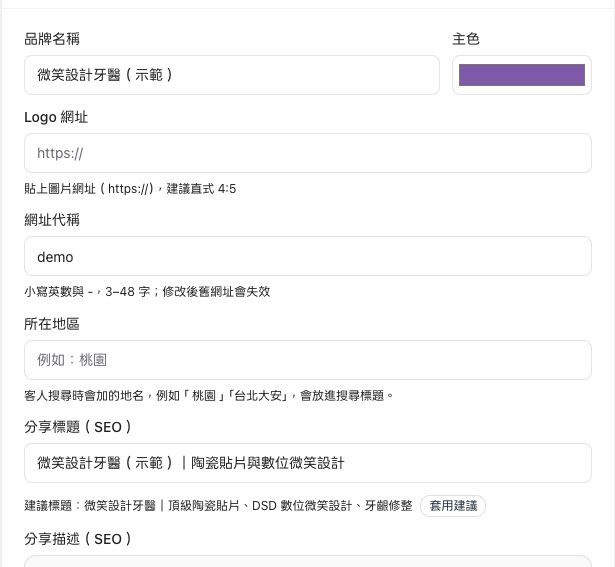
Location is the place name customers add when they search, such as your city or neighbourhood; it goes into the search title. The share title (SEO) is what appears when the page is shared on LINE or Facebook and in Google. A suggested title is offered; if you like it, click Apply suggestion, then remember to Save.
Step 5: Create a private preview, then publish in one click
Whether you edit by chat, double-click or change settings, every change goes to a draft first; the live site does not change yet. The publish controls have three buttons:
- Create private preview link: a preview only people with the link can see. Open it on your phone or send it to a colleague.
- Publish changes: once you are happy, one click puts the new version live immediately, with no redeploy.
- Unpublish: takes the site offline for now.

The Add Fridai Website Chat card is where you add the bottom-right AI chat; the sales page works fine without it.
Check your Sales SOP score before publishing
Sales SOP checks your page against the basic structure of a one-page sales site, for example whether the hero headline states the result customers get, whether there is one clear primary button, and whether you have enough testimonials and FAQs. Items that fail have a Fix it link, and AI one-click fix shows you before and after so you can approve the changes in one go.

Our advice: get every structure item passing before you run ads or put the link in your Instagram bio. Paying for traffic before the page is ready is like handing out flyers before the shop sign is up.
Step 6: Bind your own domain
Your site starts on a FRIDAI-provided address you can use straight away. To switch to your own domain, open the Domain tab:
- Buy a domain for me (recommended): type the domain you want and check whether it is available. We handle the purchase, DNS and SSL, so you never touch technical settings; it costs the domain's actual price plus NT$300 per year.
- I already have a domain: guides for GoDaddy, Cloudflare, Namecheap, PChome and Gandi walk you through adding the records at your registrar.

If you get stuck, tell us and we will finish it with you. Once your domain is bound, we also set up Google Search Console for you, which you will use in step 8.
Step 7: Read your results and let auto-optimisation work
Once the site is live and visitors arrive, the Results tab is where you will spend most of your time.
AI auto-optimisation: let the site test which version works better
The first card is AI auto-optimisation. Turn on Autopilot and the system uses real visitors' clicks to test your hero headline and button text. Winning versions are applied automatically, and the next challenge starts.

The card tells you:
- What this round is testing and the wording of the original and challenger.
- Each version's click rate so far and how confident the system is about a winner.
- "Still collecting" while there is not enough data; once there is a conclusion it decides automatically, and you can also check results now or stop the test.
- Finished tests and their results.
Section order works the same way: when a section looks persuasive but too few people scroll to it, the system tests the move first and keeps it only if it helps. To be honest with you: low-traffic pages take longer to reach a conclusion, and auto-optimisation does not guarantee any particular improvement.
AI insights and the key numbers
AI insights turns the numbers into plain advice: which channel's visitors are most likely to act, which section deserves to move up, whether most visitors are on phones. Each suggestion maps to a number in Results, so you can check it yourself.

The four key numbers are visitors, people who clicked an action button, click rate and booking forms submitted, followed by a funnel from visitors to clicks to bookings. You can switch the reporting period.
Section engagement, traffic sources and button clicks
Then come the detailed views:
- Section engagement: how many people reach each section, how long they stay, and whether people who saw it click more. This is correlation, not cause, which is why order changes are always tested first.
- Daily visitors and clicks: which days bring more traffic.
- Traffic sources: visitors, clicks and bookings from Facebook, Instagram, Google Search, LINE and direct visits. Share a tagged link on each channel to separate them more clearly.
- Button clicks: how often each button is clicked, and the split between phone, desktop and tablet visitors.

There is also a Bookings list: with the on-page booking form switched on, everyone who leaves their details appears there and you can update their follow-up status. Remember that AI Sales Pages track CTA clicks and bookings, not actual sales. Whether a customer pays happens on LINE, by phone or in person, so rely on your own payment records for revenue.
Step 8: Use the blog and SEO tab to get found on Google
The Blog and SEO tab takes care of Google Search.
SEO health score and Google search data
This shows your SEO health score and its trend, the trend of Google impressions, and Google impressions, Google clicks, average position, visitors from search and article views. The score is based on your site settings, the number and freshness of articles, Search Console and search traffic. It is not your Google ranking; it tells you what is left to improve.

Search Console and the website blog
Once your domain is bound, we set up Google Search Console for you. The tab shows the status of each setup step and the top queries people use to find you. To see the full reports with your own account, enter your Gmail under Add my Google account as an owner.

The website blog writes SEO articles based on what your customers actually search for, publishes them on your own site and sends that search traffic to your booking button:
- Each plan year includes 3 free posts; the tab shows how many you have used and when the count resets.
- Want more? The blog add-on is NT$1,500 per month for 8 posts a month.
- Turn on auto-scheduled writing and the AI picks topics and spreads the posts out over time.
- With publish-when-ready off, posts are saved as drafts until you approve them.
- To write one now, enter a topic in Write one now, or leave it blank and the AI picks a question customers are searching for.
Published articles appear in the Latest articles section of your site and on its blog page.
Dashboard tab cheat sheet
| Tab | What you can do | When to use it |
|---|---|---|
| AI Edit | Change text, images, section order and templates by chat; double-click text in the preview | When you want to change content |
| Results | Auto-optimisation tests, AI insights, funnel, section engagement, traffic sources, bookings | Regularly after launch |
| Settings | Materials checklist, image re-fetch, templates and images, action buttons, booking form, brand and SEO title | Right after import, or when changing material or buttons |
| Domain | Buy a domain through us or bind your own; registrar guides | When you want your own address |
| Blog and SEO | SEO health score, Google search data, Search Console, website blog | When you want more people to find you on Google |
| Sales SOP | Structure check and AI one-click fix | Before publishing or running ads |
What the live site looks like
Here is the hero section of a real site built with AI Sales Pages: a clear headline, a one-line explanation, a primary action button and a LINE consultation button. On phones a primary button stays fixed at the bottom so visitors can tap it wherever they are on the page.

FAQ
Can I buy AI Sales Pages without another FRIDAI plan?
Yes. Log in or register a FRIDAI account, open Sales Pages in the dashboard and pay by card online. You do not need any other FRIDAI plan first.
How soon can I start after paying?
AI Sales Pages is switched on automatically once payment goes through, so you can paste your URL and import straight away. We also contact you within 1 business day to arrange the guided setup and the 1-hour onboarding session.
How are AI edits counted, and what if I run out?
Each plan year includes 1,200 AI edits. Only edits that actually change the page count; questions and failed edits are free, and double-click text edits in the preview are free and unlimited. You can top up 50 edits for NT$300.
Do my edits go live straight away?
No. Every change is saved to a draft first. Check it with a private preview link, and the new version goes live immediately when you click Publish changes.
Is Fridai Website Chat included in the plan?
No. Fridai Website Chat in the bottom-right corner is not included in the AI Sales Pages plan: it is a paid add-on, priced per the Website Chat plan.
Can the AI editor add a membership system or payments?
No. New features, membership or payments, multi-page apps and code changes are outside the AI editor's scope. It handles text, images, prices, FAQs, section order, templates, colours and button links.
How FRIDAI can help
If you already have a website but can't tell whether it brings you bookings, AI Sales Pages starts from the site you have: we handle the import, material and training, you edit by chat or double-click, and after launch the data shows which version gets visitors to act. To check whether it fits, book a consultation on LINE; when you're ready, buy it online in the dashboard.
- One-page AI sales site: FRIDAI AI Sales Pages
- Buy online: Get AI Sales Pages in the dashboard
- Consultation: Book a consultation on LINE
- How auto-optimisation works: How an AI sales page optimises itself
- AI chat in the bottom-right corner (paid add-on): FRIDAI Chat
- Instagram: FRIDAI on Instagram
- Threads: FRIDAI on Threads
- Facebook: FRIDAI on Facebook
Official sources
- FRIDAI AI Sales Pages product page (plan, pricing and inclusions): fridai.fansnetwork.ai/en/sales-pages
- FRIDAI dashboard Sales Pages (buy and manage): www.fansnetwork.ai/en/dashboard/sales-pages
- Dashboard screenshots come from the sample clinic page in FRIDAI's public demo dashboard, and the numbers are sample data; the last image is a real site built with AI Sales Pages.