
You ran a webinar or made a checklist, and now you want to know who took it and how to reach them again. This guide walks from creating the lead magnet to a broadcast by tag, with a real screen for every step.
Want to see the whole flow run live? Join a free webinar.
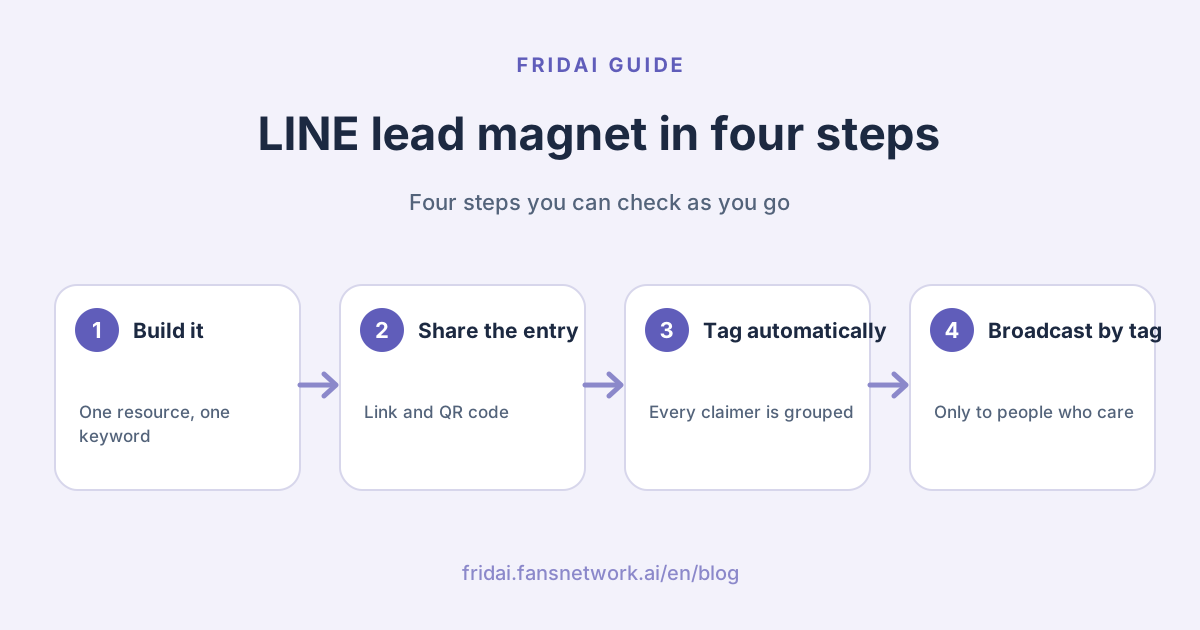
What is a lead magnet, and why pair it with tags?
A lead magnet is a small gift for potential customers: class notes, a price list, a checklist or a coupon. To get it, people add your LINE Official Account, so you gain someone you can reach again.
A list alone is not enough. Once your LINE friends grow, broadcasting to everyone interrupts people who never cared and uses more of your message quota. A tag remembers which resource brought each person in, so the next message goes only to the people it fits.
| Approach | What people get | What you can do later |
|---|---|---|
| Share an add-friend link | A welcome message | Broadcast to all friends only |
| Reply to requests by hand | A reply when you have time | Remember who took what yourself |
| FRIDAI lead magnet | The resource right after sending the keyword | Broadcast by auto tag, track clicks and replies |
Before you start, prepare three things
- A LINE Official Account connected to FRIDAI. Lead magnets run on LINE; connect the account under Authorization first.
- A resource URL people can open, such as a shared drive link or your web page.
- A short keyword, such as "notes" or "price list". People send it on LINE, so shorter means fewer typos.
Tip: one lead magnet delivers one resource. For the next event, create a new lead magnet so each tag and its results stay separate~
Five steps from lead magnet to broadcast by tag
1. Open the Lead Magnets page
Pick your LINE Official Account in the dashboard and choose Lead Magnets in the sidebar. The four cards at the top show the flow: identify entry, deliver instantly, nurture by need, return to CRM. Below them are the results for each lead magnet.

2. Create the lead magnet: resource, keyword and tag
Click Create lead magnet and fill in:
- Campaign name: this becomes the auto tag's name, so use the resource name, for example "AI course webinar gift".
- Resource URL: the link people actually open. FRIDAI adds it after the first message and records who opened it.
- LINE keyword: sending this word claims the resource. Leave it blank and FRIDAI creates a unique claim code.
- LINE Official Account: the account that delivers the resource.
- Need tag: keep "Auto: a tag named after this lead magnet" and everyone who claims it gets that tag. You can also choose an existing tag.
- Initial stage: where people start in your list, such as Exploring.
- Touch 1: Instant delivery: the message people see with the resource. Touch 2 and Touch 3 are optional follow-ups; pick when each one goes out.

With the automatic tag you do not need to create anything in Customer Tags first. When you save an existing lead magnet, people who already claimed it get the tag too.
3. Copy the dedicated link or use the QR code
After you save, the lead magnet card shows a Dedicated entry: a link and a QR code. Put the link on your last slide, in an Instagram story, a post or an ad; print the QR code on posters, table cards or slides.

On a phone, the link opens LINE with the keyword already typed, and sending it delivers the resource. Use Test to run through it yourself and check the message and the resource link.
4. Let people on a computer claim it too
Many people read slides and web pages on a computer. LINE for computers cannot type the keyword for them, so FRIDAI shows a claim page on computers:
- Open LINE and copy keyword: LINE on the computer opens the chat with the keyword copied, so people paste and send.
- Scan the QR code with a phone: the keyword is filled in, just like tapping the link on a phone.

For one-click claiming on computers, follow the four steps in the "Computer one-click (LINE Login)" card at the bottom of the Lead Magnets page. Once connected, people on a computer click "Log in with LINE to get it" and the resource lands in their LINE chat, tagged the same way.

Three things to get right when connecting:
- Create the LINE Login channel under the same provider as the Official Account.
- Add the card's Callback URL in the channel's LINE Login tab.
- In Basic settings, set Linked LINE Official Account to this account and publish the channel.
5. Broadcast by tag in Message Center
Open Message Center and click Broadcast at the top. Each broadcast uses one sending account; choose your LINE Official Account and click Select recipients.

Under "Filter by tags (multi-select)" pick the lead magnet's tag, for example "AI course webinar gift". The list keeps only people with that tag; click Select All to add them all as recipients.

Type the message, click Send, check the number of recipients and confirm. You can pick several tags, and anyone with at least one of them receives it. Combine it with Filter by interaction to reach only people who chatted within a period.
Tip: LINE Official Account broadcasts use your monthly message quota. Narrow the list with tags and send what fits, and you use less quota without flooding anyone ☺️
What to broadcast by tag: three messages that work
People who claimed the resource already showed interest, so keep building on it:
| When | Example message | Goal |
|---|---|---|
| Three days after claiming | "Did you try the template on page 3? Reply here if you got stuck" | Start a conversation |
| Before the next event | "The advanced session is open, and people who got the notes see it first" | Bring them back |
| Limited offer | "For everyone who took the checklist: early pricing on consultations this week" | Move to a sale |
Swap in your resource name and the examples are ready to send. The lead magnet's own follow-ups suit reminders at fixed times; use a broadcast by tag for news you decide to share later.
How do you know the lead magnet works?
The numbers on the Lead Magnets page follow the path people take, left to right:
| Metric | What it means | If it is low, check |
|---|---|---|
| Entry clicks | People who tapped the link or scanned the QR code | Where the link sits and how it is worded |
| Leads joined | People who sent the keyword and claimed | Whether the keyword is easy and LINE Login is connected |
| Delivered | People who received the resource | The Official Account connection |
| Resource clickers | People who opened the resource | Whether the message says what the resource is |
| Responded | People who replied after claiming | Whether a follow-up asks an easy question |
| Converted | People you marked as converted | The offer and next step in your tag broadcasts |
Summary: one resource, one tag, one precise broadcast

A quick note from FRIDAI
You just turned giving away a resource into getting to know your customers~
- One lead magnet delivers one resource, and its name becomes the auto tag
- Put the link and QR code where people already look
- People on a computer can claim it too, and LINE Login makes it one click
- Pick the lead magnet's tag when you broadcast so only the right people get it
Start with your most popular resource and build your first lead magnet today ☺️
FAQ
Do I need to create the tag in Customer Tags first?
No. Keep Need tag on "Auto: a tag named after this lead magnet". Saving the lead magnet creates a tag with its name and adds it to everyone who claims. To use an existing tag, choose it in the same menu.
Do people who claimed before get the tag?
Yes. When you save the lead magnet, people who already claimed the resource get the tag as well, so a broadcast reaches them in one go.
Can people claim it on a computer?
Yes. A computer shows a claim page: Open LINE and copy keyword, then paste and send, or scan the QR code with a phone. With a LINE Login channel connected, people on a computer click "Log in with LINE to get it" and receive the resource in one click.
Can a broadcast use two tags at once?
Yes. Filter by tags is multi-select, and anyone with at least one of the chosen tags is included. Add Filter by interaction to reach only people who chatted within a period.
What happens if someone claims twice?
Sending the keyword again delivers the resource again. The tag is not added twice and the person counts once in your list.
How FRIDAI can help
In one hour, see how private-message support, list building and auto-posting fit together.
FRIDAI Chat delivers lead magnets on LINE, tags everyone who claims, and answers with AI when they ask questions afterwards. When you want a targeted broadcast, Message Center sends by tag.
- LINE support and lead lists: FRIDAI Chat
- LINE targeting basics: LINE targeted messages and tags
- Grow LINE friends: How to get more LINE friends
- Instagram: FRIDAI Instagram
- Threads: FRIDAI Threads
- Facebook: FRIDAI Facebook
Official Sources
- LINE Developers: linking a LINE Official Account to LINE Login (add-friend option): developers.line.biz/
en/ docs/ line-login/ link-a-bot/ - LINE Developers: platforms that support the LINE URL scheme: developers.line.biz/
en/ docs/ line-login/ using-line-url-scheme/ - FRIDAI dashboard screens: Lead Magnets, the computer claim page and Message Center broadcast (sample brand data on the Lead Magnets screens).