
When a customer asks "what do you recommend?", what they want is not a long paragraph. They want to see what the product looks like, what it costs and where to buy it. Product cards put all three in front of them at once. Below we use the chat on FRIDAI's own website as the example, with a real screen for every step.
What are product cards, and what does the customer see?
Product cards are a row of cards under the AI's reply. Each card has a picture, name, short description, price and a View button that opens your product page.
The AI first says in a sentence or two why it is recommending these, then attaches the best matches. The customer does not have to dig through your site; they tap the one they like.
| What the customer sees | Text-only reply | Text plus product cards |
|---|---|---|
| What it looks like | Has to open a link to find out | Picture right on the card |
| Price | Buried in a long paragraph | Clearly shown on every card |
| Next step | Copy or tap a long URL | One tap on View |
| What you can measure | No idea whether they clicked | Every card click is recorded |
Product cards appear in website chat and in LINE Official Account chats. The website chat button follows the visitor's language, so English visitors see View and Chinese visitors see 查看
Step 1: Open Product cards in the message center
Product cards live in the message center. On a computer, Product cards is in the top bar of the message center; click it to open the settings page.

On a phone, tap the filter icon at the top right of the message center to open Filters and tools; Product cards is under Tools.
Website chat and LINE accounts can both use product cards. The owner and members with full access can add and edit products.
Step 2: Paste a product link and press Auto-fill
Under Add product, paste the product page address into Product URL and press Auto-fill. FRIDAI reads the page and fills in the product name, price, picture and short description for you.

Check each field once before you press Add product:
- Product name: the card's headline. Use the name customers actually call it.
- Price: optional, numbers only, with a currency picker on the left such as NT$ or USD. Leave it empty for services without a fixed price and the card simply shows no price.
- Picture: not happy with the one that came in? Press Upload picture to swap it. JPG, PNG, WebP or GIF up to 5 MB.
- Short description: who it suits and what makes it special. It shows on the card.
- Keywords: optional words customers might use, such as "gift dry skin", so the AI finds this product more easily.
Tip: if the page cannot be read, you will see "Couldn't read this page. Please fill in the fields yourself." You can still type the name and price by hand and add the product.
Step 3: Turn on Show product cards
Once your products are in, go back to the top of the page and turn on Show product cards. The line under the switch sums up the last 30 days: how many times products were recommended, how many cards were shown and how many were clicked.

The switch needs at least one product. To stop recommending products for a while, just turn it off; your product list stays.
Step 4: A customer asks, the AI replies with product cards
With the switch on, when a customer asks what you sell, what you recommend, which one suits them or how much something costs, the AI picks the best products from your list, explains why in a sentence or two, and attaches the cards.
For example, a visitor on FRIDAI's website asked: "I run a beauty studio and want AI to answer DMs and let clients book. Which should I use?" The AI replied that these two fit a beauty studio best and attached cards for FRIDAI Chat and the booking system.

Scroll down to see the full cards: picture, name, description, price and the button. Tapping the button opens your product page in a new tab.

The AI only recommends products on your list and quotes the prices you entered. If nothing fits, it says so honestly instead of pushing something.
Step 5: Check results for every product
At the bottom of the settings page is the product list. Each product shows its price, how many times it was shown, how many times it was clicked and the click rate, so you can see at a glance which one customers care about.

Each row has three buttons:
| Button | What it does | When to use it |
|---|---|---|
| Edit | Change the name, price, picture, description or keywords | Seasonal price changes, new photos |
| Hide | The AI stops recommending it; the data stays | Out of stock, a campaign ended |
| Delete | Remove it from the list | The product is discontinued |
Card links go through a FRIDAI short link, so every click is counted, and any tracking parameters already on your product URL are kept.
Four tips for more accurate recommendations
How well product cards work depends mostly on how clearly your product list is written.
1. Name it the way customers do
If customers say "hydrating serum" but your product is called "HY-02 Essence", the AI has a harder time matching them. Put the customer's words in the name, or add them as keywords.
2. Describe who it suits
"Great for dry skin and gift buyers" works better on a card than an ingredients list. The AI uses this text to decide what to recommend, and the customer can tell at once whether it is for them.
3. Keep the notebook and product list in step
The AI reads your notebook when it replies. If a price or name differs between the notebook and the product list, update both to the latest version so customers never see two answers. See how to write an AI customer service knowledge base.
4. Hide what is out of stock
Press Hide on anything temporarily out of stock and the AI will not recommend it. Show it again when it is back; its click history is still there.
Summary: let customers see the product the moment they ask

A quick note from FRIDAI
Here is the whole setup in four lines:
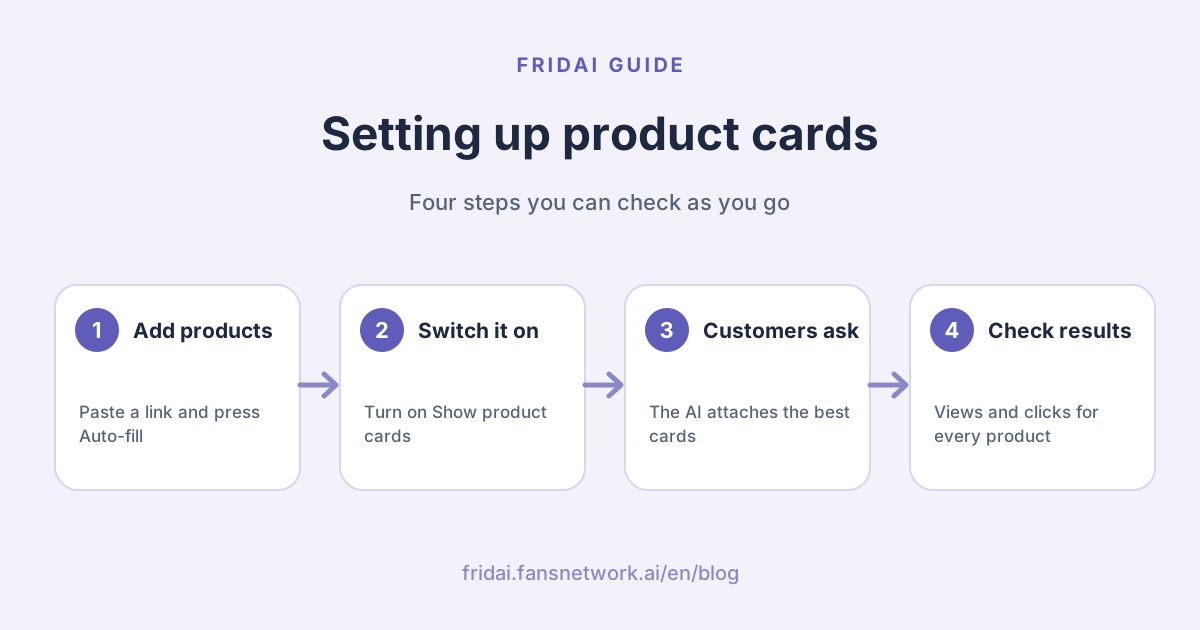
- In the message center, open Product cards, paste a product link, press Auto-fill, check and add.
- Turn on Show product cards. When customers ask for a recommendation in website chat or LINE, the AI attaches the best product cards.
- Each card has a picture, price and button, and every click is recorded.
- Watch views and clicks for every product in the list, and hide what is out of stock.
Start with the three products you are asked about most, switch it on, then ask your own website chat "what do you recommend?" and see the cards for yourself.
FAQ
Where do product cards appear?
In website chat and LINE Official Account chats, under the AI's reply. Each card has a picture, price and a View button.
Do I have to enter a price?
No. Price is optional and takes numbers only, with a currency such as NT$ or USD. Leave it empty for services without a fixed price and the card shows no price.
What if Auto-fill cannot read my product page?
You will see a message asking you to fill in the fields yourself. Type the name, price and description, upload a picture, and add the product as usual.
Will the AI recommend products that are not on my list?
No. The AI only picks from your product list and quotes the prices you entered. If nothing fits, it says so.
How do I know whether customers click the cards?
Under the switch, the Product cards page shows how many recommendations, cards shown and clicks there were in the last 30 days. The product list also shows views, clicks and click rate for each product.
Should I delete a product that is out of stock?
No need. Press Hide. The AI will not recommend hidden products, and their data and click history stay. Show them again when they are back in stock.
Who can set up product cards?
The account owner and members with full access can add, edit and delete products and turn Show product cards on or off.
How FRIDAI can help
If customers often ask "which one do you recommend?" or "how much is it?" in website chat or LINE, connect those two channels with FRIDAI Chat, add your most-asked-about products to Product cards, and let the AI attach the cards when it replies.
- DMs and website chat: FRIDAI Chat
- Plans and pricing: FRIDAI pricing
- Choosing website chat: how to choose a website AI chat widget
- Instagram: FRIDAI Instagram
- Threads: FRIDAI Threads
- Facebook: FRIDAI Facebook
Official sources
- FRIDAI Chat: fridai.fansnetwork.ai/
en/ fridai-chat - FRIDAI pricing: fridai.fansnetwork.ai/
en/ pricing