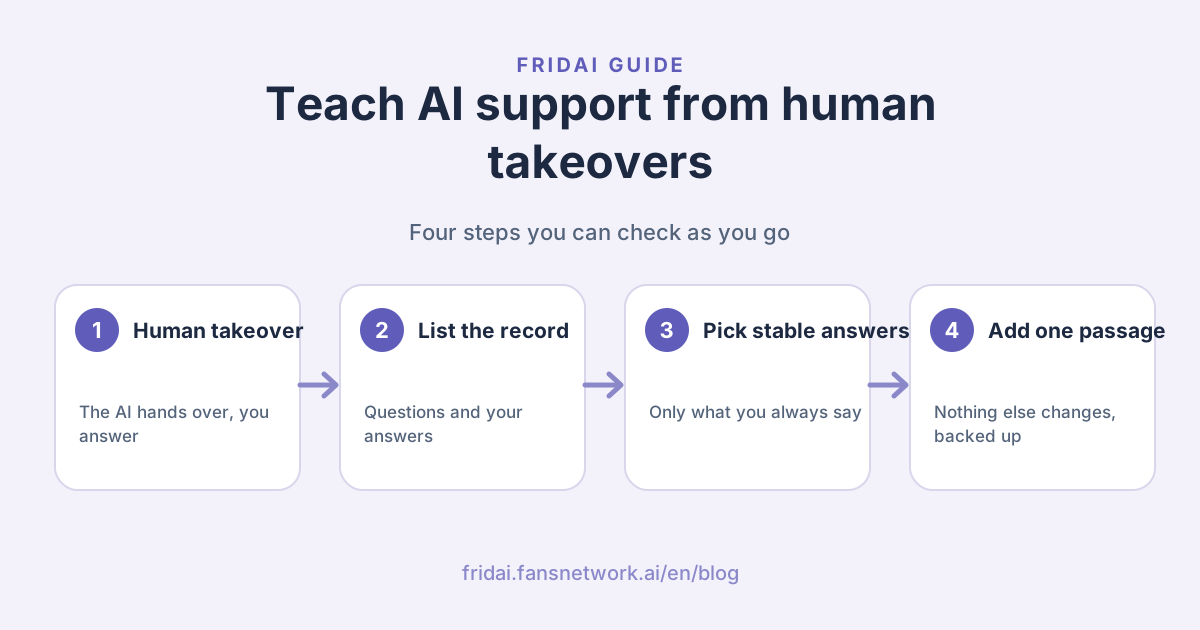
This guide walks through one full round: checking that human notifications work, connecting MCP, asking your AI assistant to list the takeover record, deciding what belongs in the Notebook, changing only the passage you need, and checking or rolling back in the dashboard.
Why is the takeover record the best teaching material?
The hard part of writing AI support rules is that you do not know what customers will ask that you never wrote down. The takeover record fills exactly that gap: these are not questions you guessed. A real customer asked, the AI could not answer, and you did.
| Source | What it contains | Best used for |
|---|---|---|
| FAQs you thought of | What you expect customers to ask | Writing the first Notebook |
| Takeover record | Questions the AI could not answer, with your real reply | Filling gaps in the Notebook |
| Your corrections of the AI | Where the AI was wrong and you stepped in | Fixing a wrong rule |
This guide covers the middle one. If you have not written a Notebook yet, start with how to write AI customer service rules that work and come back once the basics are in place.
Before you start: three conditions
- Human notifications are set up. The AI has to be able to hand a conversation to you before there is a record to learn from.
- You actually replied to customers. Quote-replying the notification in LINE counts, and so does answering in the Facebook or Instagram inbox. A conversation nobody answered is only listed as still waiting; there is no answer to learn.
- You have a Claude or ChatGPT account, and your FRIDAI account has an active paid subscription. Claude works in the browser or the desktop app; Codex lives in the ChatGPT desktop app.
Step 1: Check that human notifications work
Sign in to the FRIDAI dashboard and open “Human Notifications” in the left menu. Follow the setup steps to add the FRIDAI official LINE account and bind your subscription email. From then on, when the AI meets a question it cannot answer, it sends a summary of the conversation to your LINE.

When a notification arrives, quote-reply it in LINE and your text is sent back through the customer's original channel. You can also answer in the Facebook or Instagram inbox yourself. Both kinds of reply are picked up later.
It is worth a minute to confirm this step, because these replies are the raw material for everything else. If nobody answers a takeover, the AI has nothing to learn and the customer is still waiting.
Step 2: Connect your AI assistant to FRIDAI MCP
Already connected? Skip to step 3.
Open “MCP Settings” in the left menu and pick your AI tool. With “Claude (web / app)” chosen, click “Copy connector URL”, then paste it under “Customize” → “Connectors” → “Add custom connector” in Claude. In Codex, add it under “Settings” → “MCP servers”.

Then click “Connect” in Claude and your browser opens the authorization page on FansNetwork.ai. Check the account and the number of brands, then click “Allow connection”.

This round uses three items on that list: reading Notebooks, updating Notebooks, and reading Message Center conversations. For the full connection walkthrough starting from installing Claude, see set up DM keyword auto-replies with an AI assistant.
Step 3: Ask your AI assistant to list the takeover record
Start a new chat in Claude or Codex and look before you change anything:
- “Show me the recent human takeovers for (brand name): which questions did the AI hand to a person, and what did I answer each time? List them first and don't change the Notebook.”
It lists two kinds of conversation:
- Answered: what the customer asked, and what you or a teammate then replied.
- Not answered yet: the AI handed it over, but the customer is still waiting.
Customer names, phone numbers and addresses are masked before your AI assistant sees anything. It gets the question and the answer, not the customer's personal details.
Look at the second kind first. If the list shows a row of conversations nobody answered, replying to those customers matters more than improving the Notebook.
Step 4: Decide which answers belong in the Notebook
Not every answer you gave should go to the AI. There is one test: if the same question came in again, would you say exactly the same thing?
| What you replied | Notebook? | Why |
|---|---|---|
| Fixed facts: address, hours, parking | Yes | The answer never changes |
| Fixed process: how to book, how to return | Yes | The steps are the same for everyone |
| Fixed links: menu, sign-up page, price list | Yes | The AI can attach them directly |
| Company policy: minimum spend, pets allowed | Yes, after confirming | A mistake becomes the AI's promise |
| Individual quotes, special discounts | No | Each customer's terms differ |
| Complaints, refunds, apologies | No | A person has to judge and own it |
| An offhand reply in the moment | No | It is not your official answer |
You can ask your AI assistant to sort them first:
- “Among these replies, which are fixed answers I would give every time, and which depend on the case? Put them in two groups, and for each fixed one suggest the wording for the Notebook. Don't write anything yet.”
Read the wording it proposes. What you typed in LINE may have been short and casual; the Notebook version has to be complete and unambiguous. For prices, dates and policies, go by what you confirm now, not by what that one message said.
Step 5: Add only the passage you need
Once you have confirmed the rules to add, ask it to write them:
- “Add items 1 and 3 that I just confirmed to the Notebook. Only add these two passages under the matching sections and leave everything else untouched. Then show me the added text and where it went.”
The key phrase is “only add these two passages”. Your AI assistant does not need to rewrite the whole Notebook. It names the passage to insert or replace, and every other character stays as it was. That has three advantages: the rules you spent time tuning are not changed by accident, the edit is quick and light on your assistant's usage, and afterwards you only have to check those few lines.
Before each change the old content is saved as a version. If you edited the Notebook in the dashboard after your assistant read it, the write is refused; ask it to read the latest content and try again, and your own edit is not overwritten.
Step 6: Check the new rule in the dashboard
Open “AI Rules (Notebook)” in the dashboard and find the new passage on the “Write” tab. Check the wording, prices and links.

Then click “Test” in the top-right corner and ask the way the customer did, to see whether the AI now follows the new rule. Or ask your AI assistant:
- “Test it with the customer's original wording and compare the AI's reply before and after the change.”
That comparison is a simulated conversation. No message is sent to any customer.
Step 7: Roll back if you are not happy
Switch to the “Versions & sharing” tab and click “History” to see every version saved before a change. Pick one to restore it.

You can also tell your AI assistant “restore the Notebook to the version before that change”. The current content is backed up before restoring too, so going back and forth never loses a version.
How often should you do this?
Once a week or every two weeks, three to five items at a time. Two reasons: with too many rules added at once it is hard to tell which one caused a problem, and a new rule needs a few days of real conversations before you can see whether the AI follows it.
After a few rounds, the same kinds of question stop appearing in the takeover record, and the conversations that reach a person are the ones that really need one. That is the sign the Notebook has caught up.
On the other hand, if one kind of question keeps reaching a person every time, the rule is usually not missing. That decision belongs to a person. Leave it. An AI that hands you what should be yours is doing its job.
FAQ
Will my AI assistant write my replies into the Notebook on its own?
It lists and suggests first. Say “don't write anything yet” each time, and ask it to add the text only after you have read the wording. Facts, prices and company policy need your confirmation, because once they are in the Notebook the AI will say them to every customer.
Can it see my customers' personal details?
When it lists the takeover record, customer names, phone numbers, emails, addresses and account handles are masked first. It needs what was asked and what was answered, not who asked.
How is a partial edit different from rewriting the whole Notebook?
A full rewrite suits a change of structure. For adding one rule or correcting one fact, a partial edit is safer: it touches only the passage you name, the rest is guaranteed unchanged, and it uses less of your assistant's allowance.
Do replies I typed in the Facebook inbox count?
Yes. Quote-replies to the LINE notification and replies typed directly in the Facebook or Instagram inbox are both included.
What if a new rule conflicts with an existing one?
Ask your AI assistant to check before writing: “does this new rule conflict with anything already in the Notebook?” If it does, replace the old sentence instead of leaving two versions side by side.
Can I undo a bad change?
Yes. A version is saved before every change. Restore an earlier one under “Versions & sharing” → “History” in the Notebook, or ask your AI assistant to do it.
Can I do this without Claude or Codex?
Yes. Open the Message Center, read the conversations a person took over, and write the fixed answers into the Notebook yourself. The result is the same. What an AI assistant saves you is the time spent reading conversations, sorting them and drafting the wording.
How FRIDAI can help
FRIDAI Chat answers customers from your Notebook and notifies you when it cannot answer or when a person should decide. What you reply then becomes, through this routine, something the AI knows next time. The Notebook does not have to be perfect on day one. Let it grow with real conversations.
For everything else MCP can do, see the FRIDAI MCP guide.
- Private-message support: FRIDAI Chat
- Comment engagement: FRIDAI Social
- Social auto-posting: FRIDAI Post
- Instagram: FRIDAI Instagram
- Threads: FRIDAI Threads
- Facebook: FRIDAI Facebook
Official Sources
- Based on the actual FRIDAI dashboard screens for Human Notifications, MCP Settings, AI Rules (Notebook) and the authorization page; brands, accounts and Notebook content shown are sample data.
- Model Context Protocol introduction: modelcontextprotocol.io/
introduction