
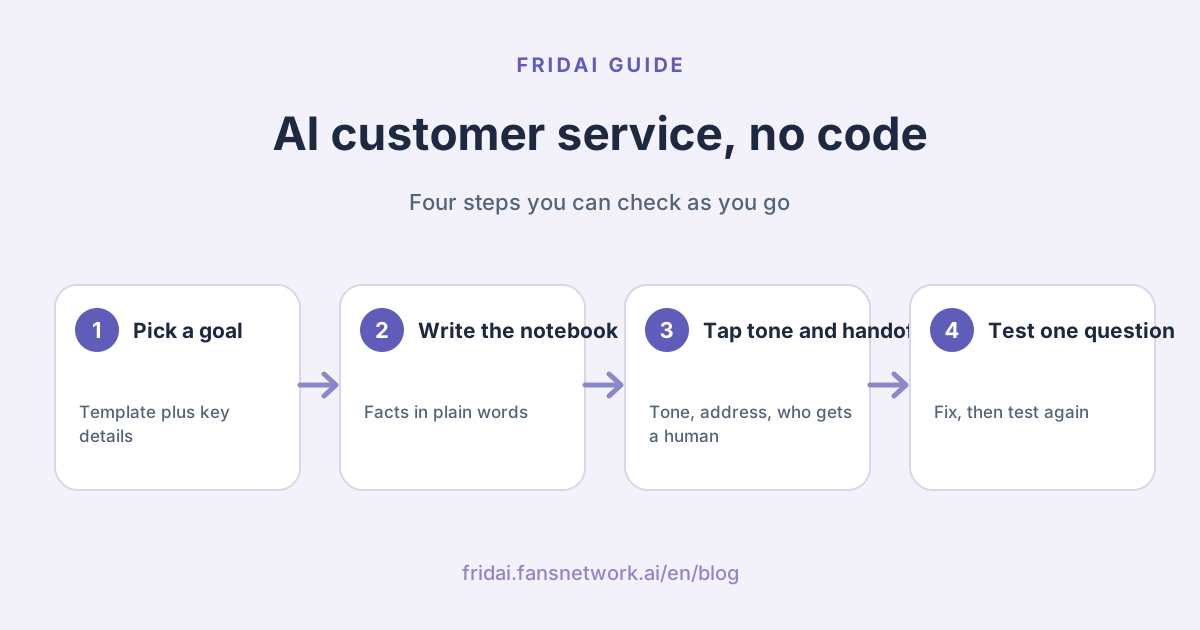
Many shop owners stall at step one because they think AI customer service means APIs and flowcharts. Today's AI customer service learns from plain language: the handover notes you would write for a new colleague are the AI's knowledge base. This guide walks through each step with the FRIDAI dashboard's demo brand, a Taipei bistro, with a desktop and a phone screenshot for every step.
Why AI customer service no longer needs code
Older chatbots needed every conversation path drawn in advance. When a customer asked something off the map, the bot got stuck, so an engineer had to maintain it. AI customer service works differently: it reads the brand facts you write and builds each answer around the customer's question. Your job changes from designing flows to writing down how your shop works.
| What you want to do | Traditional chatbot | No-code AI customer service |
|---|---|---|
| Add an FAQ | Add a keyword and a fixed reply | Add one line to the notebook |
| Change how it talks | Rewrite every reply | Tap Tone & preferences |
| Hand over to a person | Build a separate transfer button | Tick the cases that call a human |
| Check the result | Wait for real customers | Ask it yourself in the test window |
Before you start: prepare four things
- Business info: opening hours, address, closing days, payment methods
- Prices and services: your main products or services, with prices or starting prices
- Common questions: the ten questions customers ask most in DMs, with your answers
- Cases for a person: for example complaints, refunds and questions the notebook cannot answer
You do not need everything on day one. Start with the most frequent questions and add more over time.
Step 1: Pick the DM goal closest to your business
Open the FRIDAI dashboard, choose the DM account to set up and click AI Rules (Notebook) on the left. At the top is DM quick setup: 4 steps. Step one is the DM goal: Bookings and orders, High-ticket consultations, Existing-customer support or Drive link clicks. Each card lists the businesses it suits; Bookings and orders, for example, fits bakeries, florists, pet care, classes and salons.

Once you pick one, the AI replies with that goal's template. You can switch any time with Change goal.
Step 2: Add key details, pick the language, apply and turn on
Step two, Add key details, is optional, but at least add your opening hours. Tap the Hours, Pickup, Address, Prices, Order ahead or Rescheduling buttons to drop in a heading, type your details after it, paste any booking or ordering link, and click Save.

Step three picks the reply language; if someone DMs in another language, the AI switches to theirs. Step four, Apply and turn on, adds the goal's template to the top of the DM notebook, keeps what you already wrote and turns DM replies on.
Step 3: Write the knowledge base in plain words
Scroll down to the notebook itself. This is the AI's knowledge base. Write it in short sections, the way you talk. The demo bistro's notebook has:
- Brand Info: a French-inspired bistro in Taipei with refined dishes, natural wine and a relaxed date-night feel
- Reply Style: warm and concise; if unsure, say you will check with the owner
- Reservation Fields: date, time, party size, name and phone
- FAQ: opening hours, signature dishes, vegetarian options, pet-friendly, cards accepted, private events

Three habits make a knowledge base work: one fact per line, full details ("closed Mondays" beats "open on weekdays"), and prices that say whether tax is included or whether it is a starting price. If you are stuck, click AI Auto Setup or Templates for a draft and edit it into your shop's own words.
Tip: the knowledge base holds facts, and tone goes into the tap settings in the next step. Keeping them apart makes later edits quick~
Step 4: Set your brand tone by tapping
Click Tone & preferences above the notebook. Everything in this window is a tap, no rules to type:
- Reply tone: Default, Humorous or Explain like I'm 5
- When asked "Are you an AI?": say it is an AI assistant, or brush it off (never claiming to be human)
- How to address customers: casual or polite
- Emoji: none, up to 1, up to 2 or up to 3
- Reply length: short, standard or detailed
- Prices: never quote and send to a channel, only when asked, quote listed prices, or a range or "from" price only

The demo brand picked polite address, up to one emoji and short replies, so it sounds like a courteous, efficient server. More specific rules written in the notebook still win, so the two never clash.
Step 5: Tick the cases that go to a person
Scroll down the same window to Call a human when and tap the cases you want to handle: complaints, refunds and returns, bookings and changes, no answer in the notebook, asks for a person, partnerships and media, payments, invoices and orders, and feeling unwell after use. These add to the system's own handoff rules.

Below that you can write what to tell the customer at handoff and your human reply hours, so customers know when someone will answer. Industry rules further down are also one tap; the restaurant pack, for example, keeps the AI from promising a table or guaranteeing allergy or vegetarian needs. Click Save when you are done.
Step 6: Turn on human handoff in Reply Settings
Open Reply Settings from the left menu and choose 04 Human handoff. This page sets how the AI and you share the work:
- Notify Human: the AI notifies a person about questions it is unsure of
- Human Takeover Detection: when you reply yourself, the AI pauses so nobody answers twice
- DM Review Mode: AI-written DMs wait as drafts in the Message Center until you approve them
- Notify-Human Sensitivity: slide right to be notified about more conversations

Tip: in your first week you can keep DM Review Mode on, then switch it off once you trust the replies and let the AI take over~
Step 7: Ask one question in the test window
Go back to AI Rules (Notebook) and click Test at the bottom right to open the simulation. Ask something the notebook answers, in a customer's words: "Are you open on Monday? Can I bring my dog?" The demo brand's AI answers both parts from the notebook: closed on Mondays, and dogs are welcome.

Answers in the test window are generated live by FRIDAI AI, not a preset script, so after each notebook edit you can ask again and see the difference right away.
Pre-launch checklist
| Test this | Look for | If it is wrong |
|---|---|---|
| Hours, address | Correct numbers and closing days | Write full hours in the FAQ |
| Prices | Follows your chosen pricing option | Change Prices in Tone & preferences |
| A question the notebook lacks | Says it will check and notifies you | Tick No answer in the notebook |
| A complaint-style message | Apologises and hands over | Tick Complaints |
| One question in English | Replies in English | Check the reply language |
Once all five pass, let the AI take over your DMs. After launch, check the Message Center once a day and add the new questions customers keep asking to the notebook, and your knowledge base grows more complete each week.
Summary: if you can type, you can set up AI customer service

A quick note from FRIDAI
We just took AI customer service from zero to ready, without a line of code. Keep these in mind:
- Pick a DM goal, add key details like opening hours, then Apply and turn on
- Write the knowledge base in short sections, one fact per line, full details
- Tap your tone, form of address, emoji and pricing style
- Tick the cases that should reach you, and try DM Review Mode in week one
- After every notebook edit, ask one question in the test window
Put your ten most-asked questions into the notebook, then let me try them in the test window ☺️
FAQ
Can I really set up AI customer service without coding?
Yes. Everything in FRIDAI happens in the dashboard: pick a DM goal, add key details, write the notebook in plain language, tap your tone and handoff cases, and test in the simulation window. No code or API work is needed.
How should I write an AI customer service knowledge base?
Write short sections for brand info, reply style, required details and common questions, one fact per line, with full hours and prices. If you are stuck, start from AI Auto Setup or Templates and edit the draft.
How do I make AI customer service sound like my brand?
In the notebook's Tone & preferences, tap the reply tone, casual or polite address, emoji count, reply length and pricing style. For finer wording, add it to the notebook's reply style; notebook rules take priority.
What happens when the AI does not know an answer?
Tick No answer in the notebook under Call a human when, and the AI notifies you about questions the notebook does not cover. With Human Takeover Detection on in Reply Settings, the AI pauses while you reply yourself.
Can AI customer service answer LINE, Instagram and Facebook DMs together?
Yes. One FRIDAI Chat plan connects 8 platforms: LINE, Facebook Messenger, Instagram, Threads, WhatsApp, Telegram, Discord and website chat, one account per platform, with the reply allowance shared across all of them.
How much does it cost to set up AI customer service?
FRIDAI Chat starts at US$70 a month with 500 DM replies, with US$160 and US$300 plans above that. You can also try it for 30 days for US$1, set it up with this guide and then decide.
How FRIDAI can help
FRIDAI Chat answers your LINE, Instagram and Facebook DMs from one notebook written in your own words, in the tone you picked, and notifies you whenever a conversation needs your judgment.
- DM customer service: FRIDAI Chat
- Plans and pricing: FRIDAI pricing
- Further reading: How to write an AI customer service knowledge base
- Instagram: FRIDAI Instagram
- Threads: FRIDAI Threads
- Facebook: FRIDAI Facebook
Official sources
- FRIDAI Chat: fridai.fansnetwork.ai/
en/ fridai-chat - FRIDAI plans and pricing: fridai.fansnetwork.ai/
en/ pricing - FRIDAI guide: www.fansnetwork.ai/
en/ guide