
Many booking flows break in the middle. AI or an assistant answers the availability question, then someone has to quote by hand, send bank details, wait for the transfer reference, reconcile, edit the calendar and ask the accountant for an invoice. Every hand-off is a place to drop something, and every one of them eats the owner's evening.
This guide follows a real photo studio in Taipei. You will see what the customer sees, what appears in the owner's dashboard on its own, and then set up the same flow in FRIDAI step by step.
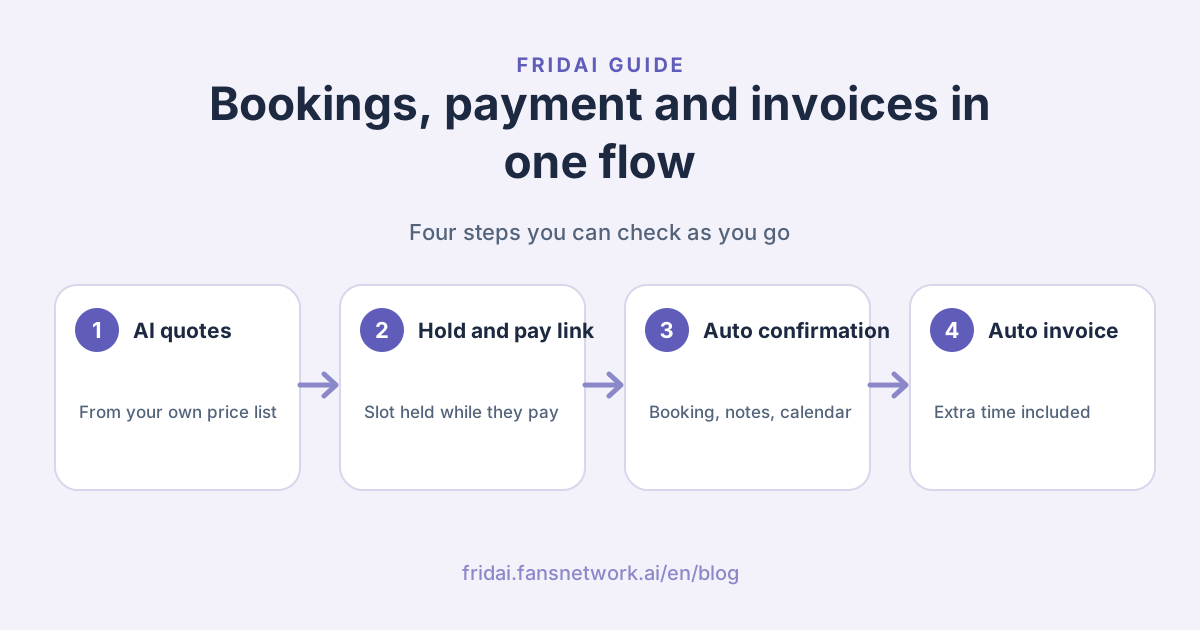
A real booking: from question to paid in 11 minutes
The studio rents two areas, A and B. Weekday and weekend rates differ, video shoots cost extra per hour, and a company invoice with a tax ID adds 5% tax. It is not a simple price list, and the owner used to work out every quote personally.
After connecting FRIDAI, a customer asked on Instagram whether area A was free on 12/

AI first confirmed the slot was free, then asked the two things that change the price: a photo or video shoot, and whether a tax-ID invoice was needed. The customer answered "photo shoot, no invoice", and AI priced three hours at NT$3,000.

The customer left a name and phone number. AI replied that the slot was held, sent the payment link and mentioned the hold lasts 24 hours. From the first message to a completed payment took 11 minutes, with no one from the studio stepping in.
| Minute | Who | What happened |
|---|---|---|
| 0 | Customer | Asks if area A is free on 12/ |
| 1 | AI | Confirms, asks about shoot type and invoice |
| 8 | AI | Quotes NT$3,000, holds the slot, sends the pay link |
| 11 | System | Payment succeeds, booking confirmed, arrival notes sent |
The customer's side: pay page, invoice details, confirmation
The pay page is already priced and the slot is held
The link opens a breakdown that is already worked out: date and time, area, hours, tax and total, plus how long the slot is held. If plans change, the customer taps "Change details" to re-price without asking again.

Company invoice details go in before paying
Ticking the tax-ID box opens the company e-invoice fields: company name, tax ID and the email the invoice goes to. The business issues the e-invoice from these details, so the customer checks them before paying. Card details are handled on the payment page; FRIDAI never receives or stores the customer's card number.

After payment, the confirmation and arrival notes arrive on their own
As soon as payment succeeds, the customer gets "payment received, booking confirmed" in the same DM thread, with name, phone, time and service, plus a link to manage or change the booking without logging in. The studio's own arrival notes follow: address, directions, parking, how to get in, house rules and the equipment provided.

These messages are marked as sent automatically by the system, so no one has to sit by the phone copying and pasting. The arrival notes are written once as the confirmation message template in the booking notebook, and every paid customer gets the same notes.
The owner's side: calendar, orders and invoices line up
Paid bookings land on the calendar
Paid bookings go straight onto the booking calendar, so you can see full and free days at a glance. AI avoids those times the next time someone asks, so a slot is never sold twice.

The order list shows payment and invoice status
Products and Orders lists every order with service, amount, payment time, booking time and status. When a customer asked for a tax-ID invoice, the order shows "company e-invoice, issued" with the invoice number, so month-end reconciliation needs no chasing.

Refunds stay your call: the Refund button next to each order is there when you decide to use it.
Extra time is automatic too: one more hour, invoiced from the original order
The most common last-minute request at a studio is "can we stay another hour?" Extra time used to be quoted privately by staff and paid by bank transfer, and the invoice was often forgotten.
Now the customer just says so in the DM. AI checks that the time right after the booking is free, prices only the added time and sends an extra-time payment link. The page states the original booking time and the new end time, and pre-fills the original order's company name, tax ID and invoice email.

Once paid, the extra hour goes on the calendar, the original booking's note says it was extended online, and a separate invoice for the extra time is issued with the original order's details. The extra time is its own payment and invoice, so a partial refund later stays clean.
Tip: extra time should go through a payment link too, so the invoice is issued automatically. A bank transfer staff collect on their own never reaches the system, so the accountant has to invoice it by hand.
Set it up yourself: three steps
All three steps happen in the FRIDAI dashboard, and FRIDAI can walk you through the payment and invoice setup in chat. If you do not have a PAYUNi store yet, Products and Orders includes a payment application assistant that walks you through applying.
Step 1: Connect your PAYUNi store and Amego e-invoicing
In Products and Orders, open the advanced settings. Under "Connect your PAYUNi store", enter the store ID and keys from your PAYUNi dashboard and press the no-charge connection check; when it shows verified, you are connected. To issue invoices automatically, enter your tax ID and key on the Amego e-invoice card next to it.

Then run the NT$1 live test and pay once yourself. It really charges NT$1, does not count as revenue and does not notify any customer, which makes it a quick way to confirm payment, booking and notifications all work.
Prefer not to match fields yourself? Let FRIDAI walk you through it in chat
Payment and invoice fields are easy to get stuck on the first time: which page holds the App Key, and what goes on the IP allowlist. So the PAYUNi and Amego cards now have a "Let FRIDAI walk me through it" button. Press it and setup becomes a chat with FRIDAI, one question at a time.

For Amego, FRIDAI first asks whether you have an Amego account, then your tax ID. Next it points you to "System settings → API" in the Amego dashboard for two things: copy the App Key, and add FRIDAI's IP to the allowlist. The IP comes with a copy button and a link that opens the Amego dashboard, so you never have to email us to ask which IP to add.

Paste the App Key back into the chat. FRIDAI stores it encrypted and immediately asks Amego whether it accepts our connection. Once you see "All connected", every customer who asks for a tax-ID invoice gets one issued the moment they pay, sent to their inbox.

Forgot the IP? One tap re-checks, and waiting invoices are issued right away
The most common slip is saving the App Key but forgetting to save the IP allowlist. The Amego card then shows a notice with how many paid orders are still waiting for an invoice, plus the IP to add.

Add the IP in the Amego dashboard, come back and press "I've added it, test it". FRIDAI asks Amego again right away, and as soon as it passes, the invoices that were waiting are issued on the spot instead of at the next scheduled retry.

Tip from the editor: PAYUNi works the same way. When a product goes live, FRIDAI drops the NT$1 live test right into the chat, so you can pay once while you are there~
Step 2: Teach AI your price list
Write your prices into the AI rules (notebook): the hourly rate for each area, weekday and weekend differences, minimum hours, add-ons and whether invoices add tax. FRIDAI turns them into the product's pricing rules and shows each field for you to confirm. Fields already in sync are clearly marked, so you only confirm what actually changed.

The clearer the price list, the more accurate the quotes. Quick tip: write add-ons and surcharges as one line each, such as "video shoots add NT$300 per hour", and AI follows them easily.
Step 3: Require payment first and set the hold time
In booking management, open "Do customers have to pay to book?" and choose to require payment first, so bookings from your booking link are confirmed only after payment. Below it, the payment link hold time sets how long a slot stays held after AI sends the link; unpaid slots are released automatically for the next customer.

Adjust the hold for the season: shorten it for popular peak slots so unpaid ones come back sooner, and give customers more time on quiet weekdays.
The most common gap: money that skips the pay link
Automatic invoicing only works when the system knows about the payment. Any transfer staff collect on their own drops out of the flow:
| How you get paid | Booking confirmed automatically | Calendar updated | Invoice issued automatically | Reconciliation |
|---|---|---|---|---|
| Pay link from AI | Yes | Yes | Yes, when a tax-ID invoice is requested | Clear in the order list |
| Extra-time link from AI | Yes | Yes | Yes, from the original order's details | Its own order |
| Transfer collected by staff | Edit by hand | Edit by hand | Accountant issues by hand | Match transfers yourself |
Add "always take payment through a pay link" to your staff hand-over notes. If a customer on site wants extra time, ask them to tell AI in the DM, and the flow stays connected.
What AI handles and what stays with you
| AI and the system handle | You decide |
|---|---|
| Checking slots and quoting from your prices | Your prices and add-ons |
| Holding slots and sending pay links | How long a hold lasts |
| Confirming bookings and sending arrival notes | What the arrival notes say |
| Issuing e-invoices | Whether and how much to refund |
| Quoting and collecting extra time | Special discounts and full-venue deals |
For anything your price list does not cover, such as a full-venue booking or a negotiated rate, add a line to the AI rules saying these go to a person, and AI will notify you so you can quote it yourself.
Summary: one flow from booking to payment to invoice

A quick note from FRIDAI
The moment a customer asks about a slot can carry all the way through to payment and the invoice, without you watching your phone. These settings make it smooth:
- Connect PAYUNi and Amego in Products and Orders (FRIDAI can walk you through it in chat), then run the NT$1 live test once
- Write prices, minimum hours and add-ons clearly so AI quotes accurately
- Require payment first for bookings and tune the hold time for the season
- Put your arrival notes in the confirmation message template so every paid customer gets them
- Route every payment and every extra hour through a pay link so invoices issue themselves
Send me your price list to read first, then pay NT$1 yourself and see how smoothly it runs~
FAQ
How long after payment are the booking and messages sent?
The booking is confirmed the moment payment succeeds, and the confirmation and arrival notes go straight to the customer's existing DM thread. No one needs to confirm anything by hand.
Do I need PAYUNi to take payments automatically?
Yes. The online payment link runs on PAYUNi. If you do not have a PAYUNi store yet, the payment application assistant in Products and Orders walks you through applying.
Can I take payments without Amego e-invoicing?
Yes. Amego e-invoicing is optional. Without it you still collect payments, confirm bookings and send messages; with it, invoices are issued automatically whenever a customer asks for a tax-ID invoice.
Amego asks me to allowlist an IP. Where do I find it?
You don't need to ask. When you connect with "Let FRIDAI walk me through it", the chat shows the IP to add with a copy button. After adding it, press "I've added it, test it": FRIDAI checks right away and issues any invoices that were waiting.
What if a customer gets the pay link and never pays?
The slot is held only for the time you set. When that time runs out without payment, the slot is released automatically and other customers can book it.
Can customers ask for extra time in the DM?
Yes. AI checks whether the time after the original booking is free, prices only the added time and sends an extra-time pay link. The invoice details carry over from the original order.
Can the system invoice a transfer my staff collected?
No. The system does not know about that payment, so the accountant has to invoice it by hand. Ask staff to use pay links for payments and extra time, and orders, calendar and invoices stay in sync.
Does the customer's card information pass through FRIDAI?
No. Customers enter card details on the payment page, and FRIDAI never receives or stores their card number.
How FRIDAI can help
FRIDAI connects DMs, bookings and payment in one flow: customers ask about slots on Instagram, Facebook or LINE, AI quotes from your price list, holds the slot and sends a pay link, and payment confirms the booking, sends arrival notes and issues the e-invoice. Extra time is collected the same way.
- Bookings and payment: FRIDAI Booking
- DM AI customer service: FRIDAI Chat
- Instagram: FRIDAI Instagram
- Threads: FRIDAI Threads
- Facebook: FRIDAI Facebook
Official sources
- FRIDAI Booking: fridai.fansnetwork.ai/
en/ booking-system - PAYUNi: www.payuni.com.tw/
- Amego e-invoice: invoice.amego.tw/
- Ministry of Finance e-Invoice Platform (Taiwan): www.einvoice.nat.gov.tw/